
1. ভূমিকা
The Sengled Smart Light Bulbs A19 are Zigbee-compatible LED bulbs designed for integration into smart home systems. These bulbs provide soft white (2700K) illumination, are dimmable, and offer control via voice commands or a mobile application when connected to a compatible Zigbee hub. This manual provides instructions for installation, setup, operation, and troubleshooting.

Image 1.1: Sengled Smart Light Bulbs A19 (4-Pack)
2. নিরাপত্তা তথ্য
- বৈদ্যুতিক নিরাপত্তা: Always ensure power is turned off at the switch before installing or removing bulbs.
- শুধুমাত্র অভ্যন্তরীণ ব্যবহার: These bulbs are designed for indoor use in dry locations. Do not expose to water or excessive humidity.
- অপারেটিং তাপমাত্রা: Do not install in enclosed fixtures that restrict airflow, as this may reduce bulb lifespan.
- ডিমার সামঞ্জস্যতা: These bulbs are dimmable via the smart home system. Do not use with standard incandescent dimmers.
- নিষ্পত্তি: স্থানীয় নিয়ম মেনে দায়িত্বের সাথে ইলেকট্রনিক বর্জ্য নিষ্পত্তি করুন।
3. প্যাকেজ বিষয়বস্তু
প্যাকেজ অন্তর্ভুক্ত:
- 4 x Sengled Smart LED Light Bulbs (A19, Soft White 2700K)
4. স্পেসিফিকেশন
| বৈশিষ্ট্য | বিস্তারিত |
|---|---|
| মডেল নম্বর | E21-N13A |
| বাল্ব টাইপ | LED |
| বাল্ব আকৃতির আকার | A19 |
| বাল্ব বেস | E26 |
| ওয়াটtage | 9 ওয়াট |
| ভাস্বর সমতুল্য | 60 ওয়াট |
| উজ্জ্বলতা | 800 লুমেনস |
| রঙের তাপমাত্রা | 2700 কেলভিন (নরম সাদা) |
| ভলিউমtage | 120 Volts (100-120V, 60Hz) |
| নিয়ন্ত্রণ পদ্ধতি | ভয়েস, অ্যাপ |
| সংযোগ | Zigbee Protocol (Hub Required) |
| গড় জীবন | 25,000 ঘন্টা |
| ইনডোর/আউটডোর ব্যবহার | ইনডোর |
| মাত্রা | ২.৪৪"ওয়াট x ৫.৫"এইচ |
5. সেটআপ নির্দেশাবলী
These Sengled Smart Light Bulbs require a compatible Zigbee hub for full functionality. Compatible hubs include Sengled Smart Hub, Amazon Echo devices with a built-in Zigbee hub (e.g., Echo 4th Gen, Echo Plus, Echo Show 10, Echo Studio), SmartThings Hub, Wink Hub, or Hubitat Hub.
২.৩. প্রাথমিক সেটআপ ধাপ
- বাল্ব ইনস্টল করুন: Screw the Sengled Smart Light Bulb into a standard E26 light socket. Ensure the power to the fixture is turned off before installation.
- পাওয়ার চালু: লাইট ফিক্সচারের পাওয়ার চালু করুন। বাল্বটি আলোকিত হওয়া উচিত।
- অ্যাপটি ডাউনলোড করুন: Download the Sengled Home App from the Apple App Store or Google Play Store. Alternatively, use the app for your chosen compatible hub (e.g., Amazon Alexa App, SmartThings App).
- নিবন্ধন/লগ ইন করুন: Open the app and register for an account or log in if you already have one.
- ডিভাইস যোগ করুন: Follow the in-app instructions to add a new device. This typically involves scanning a QR code on the bulb or packaging, or initiating a device search within the app.
- Connect to Hub: The bulb will connect to your Zigbee hub. This process usually completes within one minute.
5.2. Hub-Specific Setup Options
The following images illustrate common setup configurations:

Image 5.1: Setup with Sengled Smart Hub

Image 5.2: Setup with Samsung SmartThings Hub

Image 5.3: Setup with Amazon Echo (Built-in Hub)
6. অপারেশন
Once successfully paired with your smart hub, the Sengled Smart Light Bulbs offer various control options.
6.1. ভয়েস কন্ট্রোল
Control your lights hands-free using voice commands with compatible assistants like Amazon Alexa or Google Home Assistant.

Image 6.1: Voice control example with Alexa
6.2. Dimming and Remote Control
Adjust the brightness from 1% to 100% and control your lights from anywhere using the Sengled Home App or your smart home platform's app.
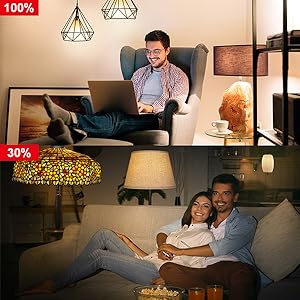
Image 6.2: Dimming functionality from 100% to 30%

Image 6.3: Remote control from any location
৫.৪. সময়সূচী এবং রুটিন
Set schedules for your lights to turn on/off or adjust brightness at specific times, such as dusk or sunrise. Create routines for automated lighting scenarios.
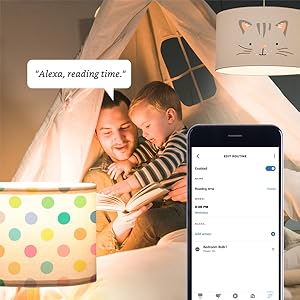
Image 6.4: Setting up a reading time routine
6.4. গ্রুপ নিয়ন্ত্রণ
Add multiple smart bulbs (up to 64) to your smart hub system and control them individually or as a group within the app.
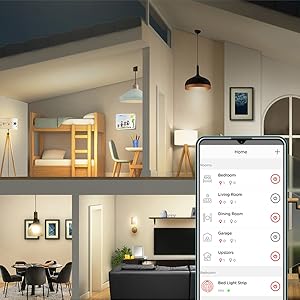
Image 6.5: Managing lights by room for group control
7. রক্ষণাবেক্ষণ
- পরিষ্কার করা: পরিষ্কার করার আগে নিশ্চিত করুন যে বাল্বটি বন্ধ এবং ঠান্ডা আছে। একটি নরম, শুকনো কাপড় দিয়ে মুছে ফেলুন। তরল ক্লিনার ব্যবহার করবেন না।
- সঞ্চয়স্থান: If storing bulbs, keep them in a cool, dry place away from direct sunlight and extreme temperatures.
- কোনো ব্যবহারকারী-পরিষেবাযোগ্য অংশ নেই: Do not attempt to disassemble or repair the bulb. This will void the warranty.
8. সমস্যা সমাধান
8.1. Bulb Not Responding/Connecting
- শক্তি পরীক্ষা করুন: Ensure the light fixture switch is in the ON position and the bulb is receiving power.
- হাব সংযোগ: Verify that your Zigbee hub is powered on and connected to your network.
- নৈকট্য: Ensure the bulb is within range of your Zigbee hub or another Zigbee device acting as a repeater.
- পুনরায় জোড়া লাগানো: If the bulb loses connection, try removing it from your app and re-pairing it according to the setup instructions. Power cycling the bulb (turning it off and on 5 times) can sometimes reset it for re-pairing.
- অ্যাপ আপডেট: Ensure your Sengled Home App or smart home platform app is updated to the latest version.
৮.৪. ভয়েস নিয়ন্ত্রণ সমস্যা
- Assistant Link: Confirm that your Sengled account (or smart hub) is correctly linked to your voice assistant (Alexa, Google Home).
- ডিভাইস আবিষ্কার: Ask your voice assistant to "Discover devices" to ensure all bulbs are recognized.
- Command Clarity: Speak commands clearly and ensure the device name used in the command matches the name in your app.
8.3. Unstable Connection
- জিগবি নেটওয়ার্ক: A strong Zigbee mesh network is crucial. Adding more Zigbee devices (like smart plugs or other bulbs) can strengthen the network.
- হস্তক্ষেপ: Keep your Zigbee hub away from Wi-Fi routers, microwaves, or other devices that might cause wireless interference.
9. ওয়ারেন্টি তথ্য
Sengled Smart Light Bulbs are covered by a 3 বছরের সীমিত ওয়ারেন্টি from the date of purchase. This warranty covers defects in materials and workmanship under normal use. For warranty claims or detailed terms, please refer to the official Sengled webসাইট বা গ্রাহক সহায়তার সাথে যোগাযোগ করুন।
10. গ্রাহক সহায়তা
For further assistance, technical support, or to report issues, please visit the official Sengled support website or contact their customer service department. Contact information can typically be found on the Sengled website or within the Sengled Home App.