
Synology DS220j
Synology DS220j User Manual
Model: DS220j
ব্র্যান্ড: সিনোলজি
1. ভূমিকা
This manual provides detailed instructions for setting up, operating, maintaining, and troubleshooting your Synology DS220j Network Attached Storage (NAS) device. The Synology DS220j is designed to be an easy-to-use private cloud solution for data storage, sharing, and management.
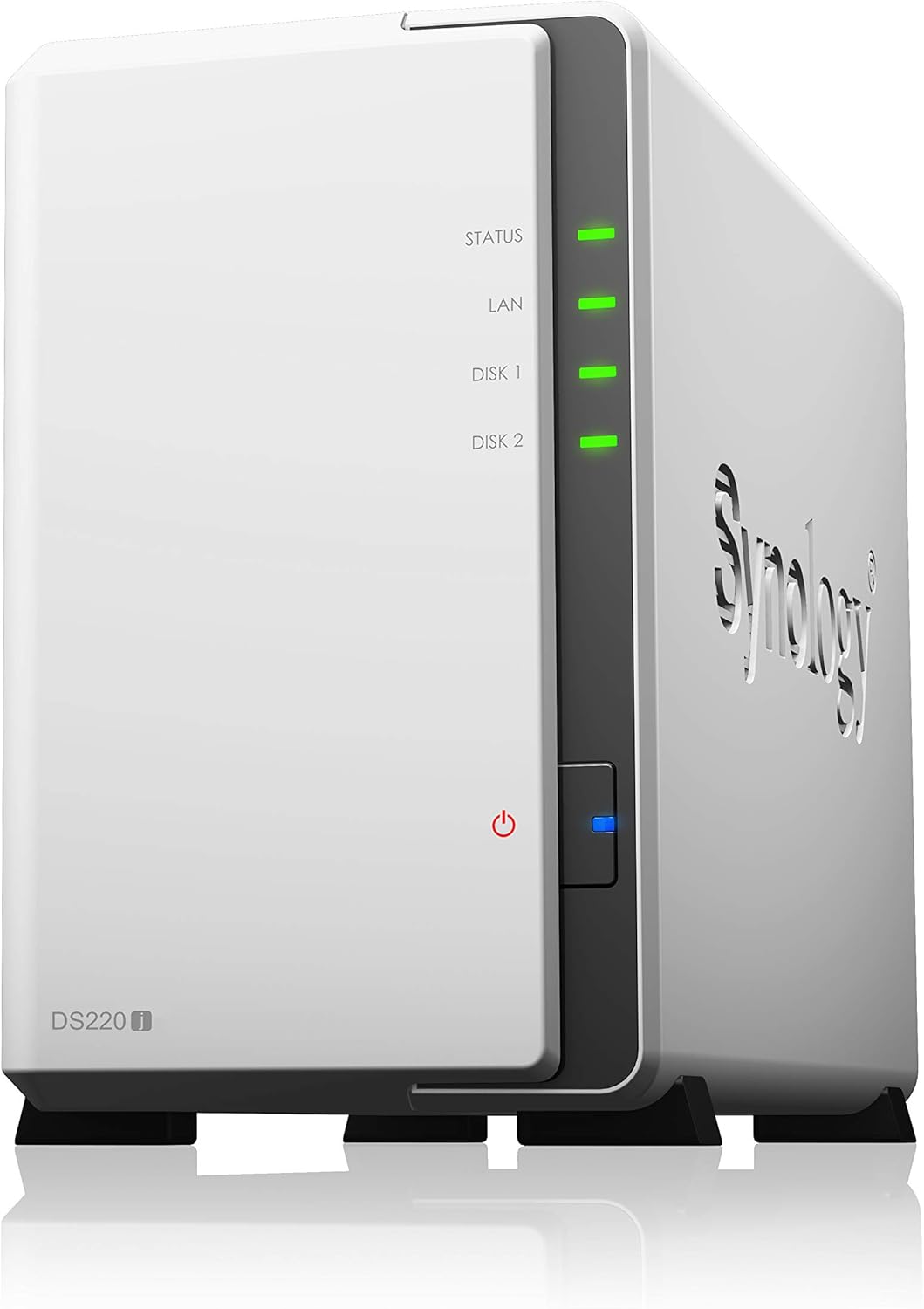
The DS220j features a 1.4 GHz Quad-Core Realtek RTD1296 (64-bit) processor and 512MB RAM, offering efficient performance for home and small office environments. It includes comprehensive built-in security tools to protect your data against evolving threats and allows integration of various network services and management applications.
2. সেটআপ গাইড
Follow these steps to set up your Synology DS220j NAS.
১.১ আনবক্সিং এবং কম্পোনেন্ট চেক
আনবক্সিং করার সময়, নিশ্চিত করুন যে সমস্ত উপাদান উপস্থিত রয়েছে:
- Synology DS220j NAS unit
- এসি পাওয়ার অ্যাডাপ্টার এবং পাওয়ার কর্ড
- দ্রুত ইনস্টলেশন গাইড
- RJ-45 LAN cables (x2)
- Hard drive tray keys (if applicable)
- 2.5-inch hard drive screws (for SSDs)

2.2 হার্ড ড্রাইভ ইনস্টলেশন
The DS220j supports two hard drives. It is recommended to use NAS-specific drives like Seagate IronWolf for optimal performance and longevity, as they are designed for continuous operation and run cooler.

- Unscrew the two screws at the back of the unit to remove the outer shell.
- Slide the outer shell off the unit.
- Install your 3.5-inch hard drives into the designated bays. For 2.5-inch drives (SSDs), use the provided screws to secure them to the trays.
- Slide the outer shell back onto the unit and secure it with the screws.
2.3 Connecting the NAS
Connect the AC power adapter to the power port on the NAS and plug it into a power outlet. Use an RJ-45 LAN cable to connect the NAS to your network switch, router, or hub. Ensure your computer is on the same network domain as the NAS for initial setup.

2.4 Initial Power On and Web সহকারী সেটআপ
Press the power button on the front of the NAS to power it on. To find your NAS via Web Assistant, open a web ব্রাউজার এবং নেভিগেট করুন http://find.synology.com. দ Web Assistant will search for your DiskStation on the network. If the NAS is connected to the same domain, it will be found. If not, you may need to download Synology Assistant from the Synology download center.
2.5 Installing DiskStation Manager (DSM)
Once your NAS is found, click "Set up" to begin the DSM installation. Follow the on-screen prompts. Be aware that all data on the hard drives will be erased during this process. Do not turn off the power during installation. The NAS will restart automatically once DSM is installed.
৫.৩ প্রশাসক অ্যাকাউন্ট তৈরি করা
After DSM installation, you will be prompted to create your administrator account. Enter a server name, username, and password. These credentials will be used to log into your Synology NAS and its services.
2.7 DSM Update & Maintenance Settings
Configure your DSM update frequency. It is recommended to automatically install the latest DSM version to ensure your NAS is always up-to-date with the latest features and security fixes. You can also enable S.M.A.R.T. tests to check the health of your hard drives periodically.
2.8 QuickConnect Setup
QuickConnect allows easy access to your DiskStation from anywhere without complex network configurations. You can create a new QuickConnect ID or log in with an existing Synology Account. This feature simplifies remote access to your NAS.
2.9 Volume Creation
For first-time users, you need to create a volume to store all packages and files. Open Storage Manager, select "Volume" on the menu, and click "Create". You can choose "Quick" to maximize storage capacity with Synology Hybrid RAID (SHR) or "Custom" for manual RAID type selection. For four or more hard drives, SHR-2 provides two-drive fault tolerance. Select the hard drives you wish to include in the volume. All data on selected drives will be erased.
2.10 File সিস্টেম নির্বাচন
You will need to select a file system for your volume. Btrfs is recommended as it provides advanced features such as snapshots, shared folder quotas, and advanced data integrity protection.
Video 2.1: NAS Setup Guide by Synology America Corp. This video provides a comprehensive guide on setting up your Synology NAS, including hardware installation and initial software configuration.
3. Operating Your Synology DS220j
The Synology DS220j offers a variety of functionalities for efficient data management.
3.1 File Sharing and Access
Your Synology NAS serves as a central repository for your files, allowing for easy sharing and access across your network. You can add and share files directly through the DSM interface or access them via Windows File Explorer or Mac Finder.
Video 3.1: How to Add and Share Files on Your Synology NAS by Synology America Corp. This video demonstrates the process of adding and sharing files on your Synology NAS.
Video 3.2: How to Access Files via Windows File Explorer or Mac Finder by Synology America Corp. This video explains how to access your NAS files using standard file browsers on Windows and Mac.
3.2 Anywhere Access with QuickConnect
With QuickConnect configured during setup, you can access your NAS files and services from any location with an internet connection, without needing complex port forwarding. Simply use your QuickConnect ID to log in via a web browser or the Synology mobile apps.
3.3 Cloud Synchronization and Backup
The DS220j can be used as a private cloud for syncing files across multiple devices and for creating backups. It supports various backup solutions, including compatibility with Apple Time Machine for macOS users.
3.4 Multimedia Management
The NAS can serve as a media server for your photos, videos, and music. You can install multimedia packages from the Package Center to organize and stream your media content to various devices.
3.5 Expanding Functionality with Package Center
The DSM Package Center offers a wide range of applications to extend the functionality of your NAS. These include tools for backup, collaboration, multimedia, surveillance, and more. You can also download corresponding mobile apps from Google Play and the App Store to manage your NAS on the go.
4. রক্ষণাবেক্ষণ
Regular maintenance ensures the optimal performance and longevity of your Synology DS220j.
4.1 DSM Updates
Keep your DiskStation Manager (DSM) updated to the latest version. Automatic updates are recommended to receive new features, security patches, and performance improvements. You can configure update settings in the Control Panel under DSM Update & Maintenance.
4.2 Hard Drive Health Monitoring
Utilize the S.M.A.R.T. (Self-Monitoring, Analysis and Reporting Technology) tests to periodically check the health of your installed hard drives. This can help identify potential drive failures before they occur, allowing you to replace drives proactively and prevent data loss.
4.3 ডেটা সুরক্ষা
Implement robust data protection strategies. Synology NAS devices offer features like RAID configurations (e.g., SHR) for data redundancy, ensuring that your data remains accessible even if one drive fails. Regularly back up critical data to external storage or a cloud service.
4.4 পরিবেশগত বিবেচনা
Ensure your NAS is placed in a well-ventilated area to prevent overheating. NAS-specific hard drives are designed to run cooler, which contributes to the overall stability and lifespan of the device.
5. সমস্যা সমাধান
This section addresses common issues you might encounter with your Synology DS220j.
5.1 Web Assistant Not Finding NAS
If http://find.synology.com does not locate your NAS, ensure your computer and NAS are connected to the same network domain. You may need to download and use the Synology Assistant desktop application to discover the device on your local network.
5.2 Slow Software Interface
Users have reported the software interface can be slow, especially during initial setup or when large amounts of data are being indexed. This is often due to high CPU usage during these processes. You can try pausing indexing if available, or allow the process to complete. Ensure your network connection is stable and fast.
5.3 Indexing Issues
When copying large amounts of photos/videos, indexing can consume significant CPU time, leading to slow login times. While a scheduled indexing option might not be directly available, the system prioritizes these tasks. Allow sufficient time for indexing to complete, especially after adding large data sets.
5.4 Antivirus Software Issues
If the Synology antivirus program is not updating or scanning correctly, you might need to manually install the first virus definition. Refer to Synology's official support resources for specific instructions on resolving antivirus update issues.
5.5 Time Machine Backup Hiccups
For macOS users experiencing Time Machine backup issues, it might be due to multiple sessions for the Time Machine user on the Synology device. Access your Synology DSM, navigate to the user settings, and terminate any redundant Time Machine user sessions. This often resolves the backup problem.
6. স্পেসিফিকেশন
| বৈশিষ্ট্য | স্পেসিফিকেশন |
|---|---|
| মডেল | DS220j |
| প্রসেসর | 1.4 GHz Quad-Core Realtek RTD1296 (64-bit) |
| RAM | 512MB |
| হার্ড ড্রাইভের ধরণ | Mechanical Hard Disk (compatible with 3.5" and 2.5" drives) |
| হার্ড ড্রাইভ ইন্টারফেস | সিরিয়াল এটিএ 600 |
| ল্যান | 1x Gigabit LAN Port |
| ইউএসবি পোর্ট | USB 3.0 (quantity not specified, typically 2) |
| মাত্রা (LxWxH) | 8.86 x 3.94 x 6.5 ইঞ্চি |
| আইটেম ওজন | 1.94 পাউন্ড |
| রঙ | Enclosure (White) |
| প্রস্তুতকারক | Synology |
| প্রথম উপলব্ধ তারিখ | 25 ফেব্রুয়ারি, 2020 |
7. ওয়্যারেন্টি এবং সমর্থন
For detailed warranty information and technical support, please refer to the official Synology website or contact Synology customer service. Synology provides extensive online resources, including knowledge bases, forums, and download centers for software updates and utilities.
ভিজিট করুন Synology Official Webসাইট আরও তথ্যের জন্য
সম্পর্কিত নথি - DS220j
 |
Synology NAS DS220j - Instrukcja instalacji urządzenia Przewodnik instalacji i konfiguracji dla Synology NAS DS220j, zawierający zawartość opakowania, przegląd sprzętu, specyfikacje, zasady bezpieczeństwa, instalację dysków, uruchamianie, wskaźniki LED, rozwiązywanie problemów oraz instalację systemu DSM. |
 |
Synology DS220j NAS Hardware Installation Guide A comprehensive guide for the hardware installation of the Synology DS220j Network Attached Storage (NAS) device, covering setup, component identification, and initial power-on procedures. |
 |
সিনোলজি NAS ব্যবহারকারীর নির্দেশিকা: মাস্টার DSM 6.2 বৈশিষ্ট্য ডিস্কস্টেশন ম্যানেজার (DSM) 6.2 চালিত Synology NAS ডিভাইসগুলির জন্য বিস্তৃত ব্যবহারকারী নির্দেশিকা। সেট আপ, পরিচালনা, ভাগ করে নেওয়া শিখুন files, ডেটা ব্যাকআপ করুন এবং সর্বোত্তম কর্মক্ষমতা এবং নিরাপত্তার জন্য উন্নত বৈশিষ্ট্যগুলি ব্যবহার করুন। |
 |
DSM 6.0 এর জন্য Synology NAS ব্যবহারকারীর নির্দেশিকা ডিস্কস্টেশন ম্যানেজার (DSM) 6.0 চালিত সিনোলজি NAS ডিভাইসগুলির জন্য একটি বিস্তৃত নির্দেশিকা, যা সেটআপ, সিস্টেম সেটিংস, স্টোরেজ ব্যবস্থাপনা, file শেয়ারিং, ইন্টারনেট অ্যাক্সেস, নিরাপত্তা, ব্যাকআপ এবং মোবাইল ডিভাইস ইন্টিগ্রেশন। |
 |
সিনোলজি DS925+ পণ্য ম্যানুয়াল: সেটআপ, ইনস্টলেশন এবং সমস্যা সমাধান Synology DS925+ নেটওয়ার্ক অ্যাটাচড স্টোরেজ (NAS) ডিভাইসের জন্য বিস্তৃত পণ্য ম্যানুয়াল। আপনার Synology স্টোরেজ সলিউশনের জন্য হার্ডওয়্যার ইনস্টলেশন, DSM সেটআপ, সিস্টেম রক্ষণাবেক্ষণ এবং সমস্যা সমাধান কভার করে। |
 |
সিনোলজি ডিস্কস্টেশন DS118 : ইনস্টলেশন এবং ব্যবহারের নির্দেশিকা Manuel complet pour le Synology DiskStation DS118. Apprenez à installer, configurer et utiliser votre NAS pour le stockage, le partage de fichiers et la sauvegarde. |