
ভূমিকা
The AVATTO S16 Pro is a universal smart remote control designed to integrate various infrared (IR) and radio frequency (RF 433 MHz) devices into a single control system via Wi-Fi. It operates through the TUYA smart home platform, allowing you to manage your home appliances from anywhere using your smartphone. This manual provides essential information for setting up, operating, maintaining, and troubleshooting your S16 Pro device.
সেটআপ
প্যাকেজ বিষয়বস্তু
- 1 x AVATTO S16 Pro Universal Remote Control Unit
- এক্সএনইউএমএক্স এক্স ইউএসবি পাওয়ার কেবল
- ১ x ব্যবহারকারীর ম্যানুয়াল (এই নথি)
ডিভাইস শেষview
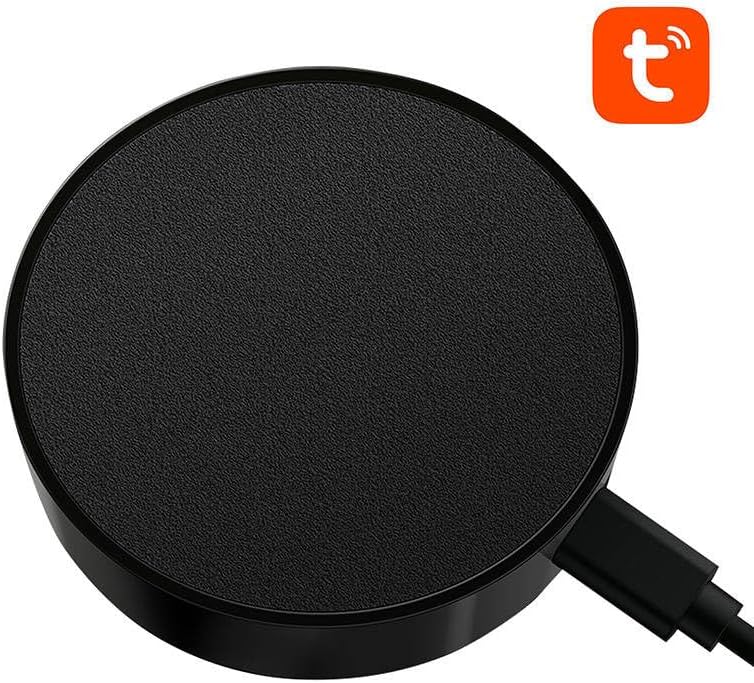
ছবি: উপরে view of the AVATTO S16 Pro Universal Remote Control, showing its circular design and the USB power input.
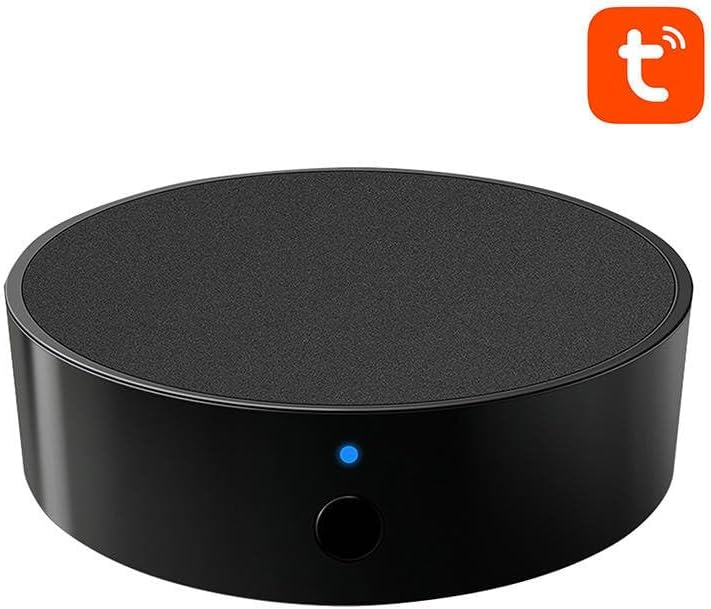
ছবি: সামনের দিকে view of the AVATTO S16 Pro Universal Remote Control, highlighting the blue indicator light and the physical button.
চালু হচ্ছে
- Connect the provided USB power cable to the micro-USB port on the AVATTO S16 Pro.
- Plug the other end of the USB cable into a 5V/1A USB power adapter (not included) or a compatible USB port.
- The indicator light on the device will illuminate, indicating it is powered on.
Connecting to TUYA App
- ডাউনলোড করুন টুয়া স্মার্ট or স্মার্ট লাইফ আপনার স্মার্টফোনের অ্যাপ স্টোর (iOS বা Android) থেকে অ্যাপটি ডাউনলোড করুন।
- নিবন্ধন করুন বা আপনার অ্যাকাউন্টে লগ ইন করুন।
- Ensure your smartphone is connected to a 2.4 GHz Wi-Fi network. The S16 Pro does not support 5 GHz Wi-Fi.
- Open the app, tap the "+" icon in the top right corner to add a device.
- Select "Universal Remote Control" or search for the device type.
- Follow the on-screen instructions to put the S16 Pro into pairing mode (usually by pressing and holding the reset button until the indicator light blinks rapidly).
- Confirm the indicator light status in the app and enter your Wi-Fi password.
- Wait for the device to connect. Once connected, you can rename the device and assign it to a room.
Adding Devices (IR/RF)
After successfully connecting the S16 Pro to the app, you can add IR and RF controlled devices:
- In the S16 Pro device interface within the Tuya app, select "Add Remote Control".
- Choose the type of device you want to add (e.g., TV, Air Conditioner, Fan, RF Curtain).
- For IR devices, you can often select from a pre-defined brand library or use the "DIY" learning function.
- For RF 433 MHz devices, use the "RF Learn" function to capture the signals from your existing RF remote. Follow the app's prompts to press buttons on your original remote.
- Test the added controls to ensure they function correctly.
অপারেটিং নির্দেশাবলী
অ্যাপ ব্যবহার করে
- Open the Tuya Smart or Smart Life app on your smartphone.
- Select the AVATTO S16 Pro from your device list.
- Access the virtual remote controls for your added IR/RF devices.
- Tap the corresponding buttons to control your appliances.
কন্ট্রোলিং ডিভাইস
Ensure the S16 Pro is placed in a central location with a clear line of sight to IR-controlled devices. For RF devices, line of sight is not strictly necessary, but proximity can improve signal reliability.
Creating Automations and Scenes
The Tuya app allows you to create smart scenes and automations:
- দৃশ্য: Combine multiple actions into a single tap (e.g., "Movie Night" scene turns on TV, lowers lights, and adjusts AC).
- অটোমেশন: Set up conditions to trigger actions (e.g., turn on AC when room temperature exceeds 28°C, or turn off TV at a specific time).
রক্ষণাবেক্ষণ
ক্লিনিং
- একটি নরম, শুকনো কাপড় দিয়ে ডিভাইসটি মুছুন।
- Do not use liquid cleaners, aerosols, or abrasive chemicals, as these can damage the device.
পরিবেশগত অবস্থা
- Keep the device away from direct sunlight, high temperatures, and high humidity.
- শক্তিশালী তড়িৎ চৌম্বকীয় ক্ষেত্রের কাছে ডিভাইসটি রাখা এড়িয়ে চলুন।
সমস্যা সমাধান
- ডিভাইসটি Wi-Fi এর সাথে সংযুক্ত হচ্ছে না: Ensure your Wi-Fi network is 2.4 GHz. Check your Wi-Fi password. Try resetting the S16 Pro by pressing and holding the button for 5-10 seconds until the indicator light blinks rapidly, then attempt pairing again.
- IR devices not responding: Ensure the S16 Pro has a clear line of sight to the IR-controlled device. The distance between the S16 Pro and the IR device should not be excessive. Re-learn the IR commands if necessary.
- RF devices not responding: Ensure the S16 Pro is within range of the RF device. RF signals can pass through walls but may be weakened by obstacles. Re-learn the RF commands if necessary.
- App not controlling devices: Check your internet connection. Ensure the S16 Pro is online in the Tuya app. Restart the app or your smartphone.
- Indicator light not on: Verify the USB power cable is securely connected and the power adapter is functioning. Try a different USB cable or power adapter.
স্পেসিফিকেশন
| ব্র্যান্ড | AVATTO |
| মডেল | S16Pro |
| রঙ | কালো |
| সংযোগ | IR, Wi-Fi (2.4 GHz), RF 433 MHz |
| সামঞ্জস্য | TUYA Smart / Smart Life App |
| আইটেম নম্বর | 10229 |
| অন্তর্ভুক্ত উপাদান | 1 ইউনিট |
ওয়্যারেন্টি এবং সমর্থন
ওয়ারেন্টি তথ্য
The AVATTO S16 Pro comes with a 2 বছরের প্রস্তুতকারকের ওয়ারেন্টি. ওয়ারেন্টি দাবির জন্য অনুগ্রহ করে আপনার ক্রয়ের প্রমাণপত্র সংরক্ষণ করুন।
কাস্টমার সাপোর্ট
For technical assistance, troubleshooting beyond this manual, or warranty inquiries, please contact your retailer or the AVATTO customer support directly. Refer to the product packaging or AVATTO's official webযোগাযোগের বিবরণের জন্য সাইট।