
1. ভূমিকা
Thank you for choosing the PRIXTON Prado XL 15.6-inch Digital Photo Frame. This manual provides essential information for setting up, operating, and maintaining your device. Please read it carefully before use to ensure optimal performance and longevity of your digital photo frame.
The PRIXTON Prado XL features a vibrant 15.6-inch Full HD IPS touchscreen display, offering clear and vivid image reproduction. With built-in Wi-Fi, 32GB of internal memory, and support for both photos and videos, it allows you to easily share and display your cherished memories. The frame also includes integrated speakers and multiple input options, including USB Type-C, USB-A, and an SD card slot, providing versatile ways to manage your content.
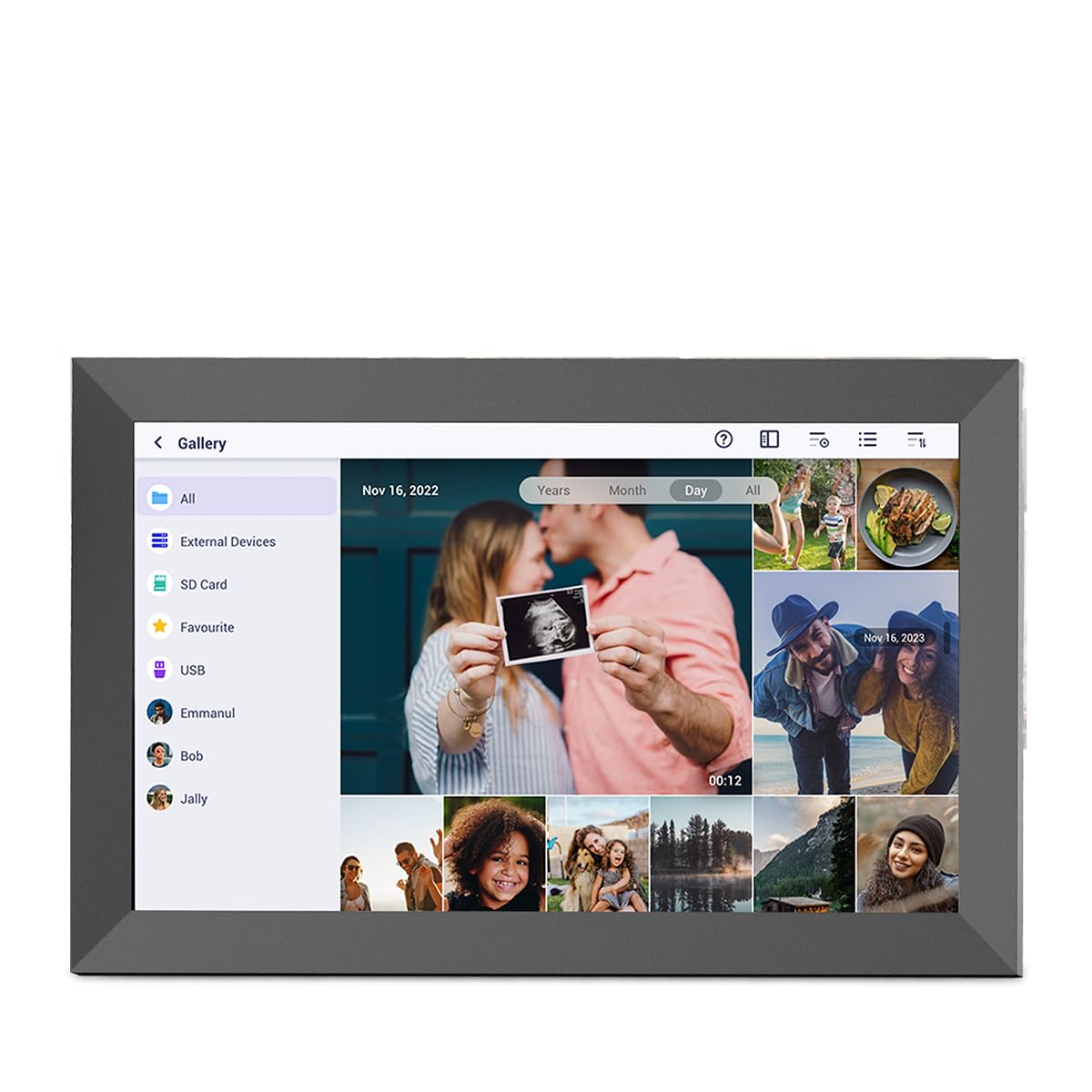
Image: The PRIXTON Prado XL digital photo frame showcasing a family picture.
2. প্যাকেজ বিষয়বস্তু
নিম্নলিখিত আইটেমগুলির জন্য বাক্সটি চেক করুন:
- PRIXTON Prado XL 15.6-inch Digital Photo Frame
- পাওয়ার অ্যাডাপ্টার
- ব্যবহারকারী ম্যানুয়াল (এই দস্তাবেজ)
3. পণ্য শেষview
Familiarize yourself with the various ports and controls on your digital photo frame.

Image: Back panel of the frame, highlighting the power button, USB-A, USB-C, SD card slot, and headphone jack.
মূল উপাদান:
- পাওয়ার বোতাম: Located on the back, used to turn the frame on/off or put it into sleep mode.
- USB-A পোর্ট: For connecting USB flash drives to transfer photos and videos.
- ইউএসবি টাইপ-সি পোর্ট: For connecting compatible devices or for data transfer.
- SD কার্ড স্লট: For inserting SD cards to display or transfer media.
- মাথায় বাঁধিয়া ব্যবহার্য বেতারযন্ত্র জ্যাক: বাহ্যিক অডিও ডিভাইস সংযোগের জন্য।
- ডিসি পাওয়ার ইনপুট: পাওয়ার অ্যাডাপ্টার সংযোগের জন্য।
- Wall Mount Holes: দেয়ালে ফ্রেম লাগানোর জন্য।
4. সেটআপ
4.1 চালু
- Connect the power adapter to the DC Power Input port on the back of the frame.
- পাওয়ার অ্যাডাপ্টারটিকে একটি ওয়াল আউটলেটে প্লাগ করুন।
- The frame will automatically power on. If not, press and hold the Power Button for a few seconds.
4.2 প্রাথমিক কনফিগারেশন
Upon first startup, you will be guided through the initial setup process:
- ভাষা নির্বাচন কর: তালিকা থেকে আপনার পছন্দের ভাষাটি বেছে নিন।
- Wi-Fi এর সাথে সংযোগ করুন: Select your Wi-Fi network and enter the password. A stable internet connection is required for app functionality and software updates.
- তারিখ এবং সময় সেট করুন: Configure the correct date, time, and time zone.
4.3 Connecting with the Uhale App
The Uhale app allows you to easily send photos and videos directly to your frame from your smartphone.
- অ্যাপটি ডাউনলোড করুন: জন্য অনুসন্ধান করুন "Uhale" in your smartphone's app store (iOS or Android) and install it.
- একটি অ্যাকাউন্ট তৈরি করুন: Open the Uhale app and follow the instructions to create a new user account.
- Pair the Frame: On your digital photo frame, navigate to the "Settings" menu and find the "Bind Device" or "Add Device" option. This will display a unique code or QR code.
- Enter Code/Scan QR: In the Uhale app, select "Add Device" and either manually enter the code displayed on your frame or use your phone's camera to scan the QR code.
- একবার পেয়ার হয়ে গেলে, আপনি আপনার ফ্রেমে ছবি এবং ভিডিও পাঠানো শুরু করতে পারেন।

Image: A smartphone screen showing the Uhale app interface next to the digital photo frame.
৫. ফ্রেম পরিচালনা করা
৩.১ টাচস্ক্রিন নেভিগেশন
The Prado XL features a responsive touchscreen for easy navigation:
- আলতো চাপুন: একটি আইটেম নির্বাচন করুন অথবা একটি মেনু খুলুন।
- সোয়াইপ: Navigate through photos, menus, or lists.
- জুম করতে চিমটি: Zoom in or out on photos (if supported by software).
৫.২ ছবি এবং ভিডিও যোগ করা
There are several ways to add media to your frame:
5.2.1 Via Uhale App
- আপনার জোড়া স্মার্টফোনে Uhale অ্যাপটি খুলুন।
- Select the photos or videos you wish to send.
- Tap the "Send" or "Share" button to transfer them to your frame.
- The media will appear on your frame shortly, provided it is connected to Wi-Fi.
5.2.2 Via USB Drive or SD Card
- Insert a USB flash drive into the USB-A port or an SD card into the SD card slot.
- The frame will detect the external storage. Navigate to the "Gallery" or "Files" section.
- Select the desired photos or videos and choose to copy them to the frame's internal memory.

Image: User interacting with the Uhale app to send content to the digital photo frame.
5.3 Managing Content and Slideshows
- গ্যালারি: Access all your stored photos and videos. You can view them individually or start a slideshow.
- মুছুন: Select unwanted media and choose the delete option.
- স্লাইডশো সেটিংস: Customize slideshow duration, transition effects, and playback order in the settings menu.

Image: The digital photo frame displaying a lively birthday party scene.
6। সেটিংস মেনু
Access the settings menu by tapping the gear icon on the home screen. Here you can configure various aspects of your frame:
- প্রদর্শন: Adjust brightness, screen sleep time, and display mode.
- ওয়াই-ফাই: আপনার নেটওয়ার্ক সংযোগ পরিচালনা করুন.
- তারিখ ও সময়: Manually set or synchronize date and time.
- সঞ্চয়স্থান: View internal storage usage and manage external storage devices.
- সম্পর্কে: View device information, including software version and model number.
7. রক্ষণাবেক্ষণ
৫.১ পর্দা পরিষ্কার করা
টাচস্ক্রিন পরিষ্কার করতে, একটি নরম, লিন্ট-মুক্ত কাপড় দিয়ে আলতো করে মুছুন। একগুঁয়ে দাগের জন্য, সামান্য ঘষুনampজল বা স্ক্রিন-নিরাপদ পরিষ্কারের দ্রবণ দিয়ে কাপড়টি মুছুন। কঠোর রাসায়নিক বা ঘষিয়া তুলিয়া ফেলিতে সক্ষম পদার্থ ব্যবহার এড়িয়ে চলুন।
7.2 সফ্টওয়্যার আপডেট
Ensure your frame is connected to Wi-Fi to receive automatic software updates. Updates provide new features, performance improvements, and bug fixes. You can manually check for updates in the "Settings" > "About" menu.
8. সমস্যা সমাধান
| ইস্যু | সম্ভাব্য সমাধান |
|---|---|
| Frame does not turn on. | নিশ্চিত করুন যে পাওয়ার অ্যাডাপ্টারটি ফ্রেম এবং একটি কার্যকরী পাওয়ার আউটলেট উভয়ের সাথেই সুরক্ষিতভাবে সংযুক্ত। একটি ভিন্ন আউটলেট চেষ্টা করুন। |
| Wi-Fi এর সাথে সংযোগ করা যাচ্ছে না। | Check if your Wi-Fi router is on and working. Re-enter the Wi-Fi password carefully. Move the frame closer to the router. |
| ছবি/ভিডিও দেখা যাচ্ছে না। | Verify that the media has been successfully uploaded via the app or copied from USB/SD. Check file formats for compatibility. Ensure the frame is connected to Wi-Fi if using the app. |
| টাচস্ক্রিনটি সাড়া দিচ্ছে না। | Restart the frame by holding the power button. Ensure the screen is clean and free of debris. |
| ফ্রেম ধীর গতিতে চলছে অথবা জমে যাচ্ছে। | Restart the frame. Clear some internal storage if it is nearly full. |
9. স্পেসিফিকেশন
| বৈশিষ্ট্য | বিস্তারিত |
|---|---|
| মডেল নম্বর | 10006183 |
| ডিসপ্লে সাইজ | 15.6 ইঞ্চি |
| প্রদর্শনের ধরন | আইপিএস টাচস্ক্রিন |
| রেজোলিউশন | 1920 x 1080 ফুল এইচডি |
| অভ্যন্তরীণ মেমরি | 32 জিবি ফ্ল্যাশ |
| RAM | 1 জিবি |
| সংযোগ | ওয়াই-ফাই |
| বন্দর | USB Type-C, USB-A, SD Card Slot, Headphone Jack |
| অডিও | ইন্টিগ্রেটেড স্পিকার |
| মাত্রা (L x W x H) | 14 x 21 x 2.51 সেমি |
10. ওয়্যারেন্টি এবং সমর্থন
PRIXTON products are designed and manufactured to the highest quality standards. For information regarding warranty coverage, please refer to the warranty card included with your product or visit the official PRIXTON webসাইট
If you encounter any issues or have questions not covered in this manual, please contact PRIXTON customer support for assistance. You can find contact details on the PRIXTON webসাইট অথবা আপনার ক্রয় প্ল্যাটফর্মের মাধ্যমে।
অনলাইন সাপোর্ট: Visit the PRIXTON Store on Amazon