
1. ওভারview
The GetPairr Vista 11-inch Portable Display Audio Android Navigation System is designed to enhance your in-car entertainment and navigation experience. Featuring a built-in Android system, it supports wireless connectivity for popular smartphone integration platforms and offers versatile audio output options.
মূল বৈশিষ্ট্য:
- Integrated Android System: Equipped with a 4-core CPU, 2GB RAM, and 32GB ROM, allowing direct access to streaming applications like YouTube, Netflix, and Spotify via Wi-Fi tethering.
- ওয়্যারলেস কারপ্লে/অ্যান্ড্রয়েড অটো: Seamlessly connect your smartphone via Bluetooth for wireless access to navigation, music, messaging, and calls, eliminating cable clutter.
- Smart Split Screen (PIP Function): The 11-inch wide display supports a 5:5 split-screen ratio, enabling simultaneous viewing of navigation and other Android applications.
- Dual Bluetooth Connectivity: Allows simultaneous connection to your smartphone for input and your car's audio system for wireless output to car speakers.
- উচ্চ-রেজোলিউশন প্রদর্শন: An 11-inch screen with 1920x720 resolution provides clear visuals for maps, videos, and applications, improving visibility and operational ease while driving.

2. সেটআপ
2.1 প্যাকেজ বিষয়বস্তু
প্যাকেজে সমস্ত আইটেম উপস্থিত আছে কিনা তা যাচাই করুন:
- Portable Display Audio Main Unit
- দাঁড়ান
- AUX কেবল
- Cigarette Lighter Plug Adapter
- ব্যবহারকারী ম্যানুয়াল (এই দস্তাবেজ)

2.2 ইনস্টলেশন
- ইউনিট মাউন্ট করা: Attach the provided stand to the main unit. Secure the stand to your dashboard using the 3M tape. Ensure the unit is placed in a location that does not obstruct your view অথবা গাড়ি চালানোর ক্ষেত্রে হস্তক্ষেপ করে।
- পাওয়ার সংযোগ: Connect the cigarette lighter plug adapter to the main unit's 5V power cable. Insert the cigarette lighter plug into your vehicle's accessory socket. The unit supports both 12V and 24V vehicle systems.
- প্রাথমিক পাওয়ার অন: Once connected, the unit will power on automatically when the vehicle's ignition is turned on.


3. অপারেটিং নির্দেশাবলী
3.1 Android System and App Usage
The GetPairr Vista unit runs on an Android operating system, allowing you to install and use various applications.
- ওয়াই-ফাই সংযোগ: To access online services and download apps, connect the unit to a Wi-Fi network. This can be done via your smartphone's tethering function or an in-car Wi-Fi hotspot.
- অ্যাপ ইনস্টলেশন: Use the pre-installed app store or other compatible methods to download and install applications like YouTube, Netflix, Spotify, etc.
- নেভিগেশন: Utilize navigation apps directly on the unit or through connected CarPlay/Android Auto.

৬.২ ওয়্যারলেস কারপ্লে / অ্যান্ড্রয়েড অটো সংযোগ
Connect your smartphone wirelessly to access CarPlay or Android Auto features.
- পেয়ারিং: On your smartphone, enable Bluetooth and search for the GetPairr Vista unit. Pair the devices.
- স্বয়ংক্রিয় সংযোগ: Once paired, CarPlay or Android Auto will automatically connect when the unit powers on.
- কার্যকারিতা: Access your phone's navigation, music, messages, and make calls directly from the unit's display.
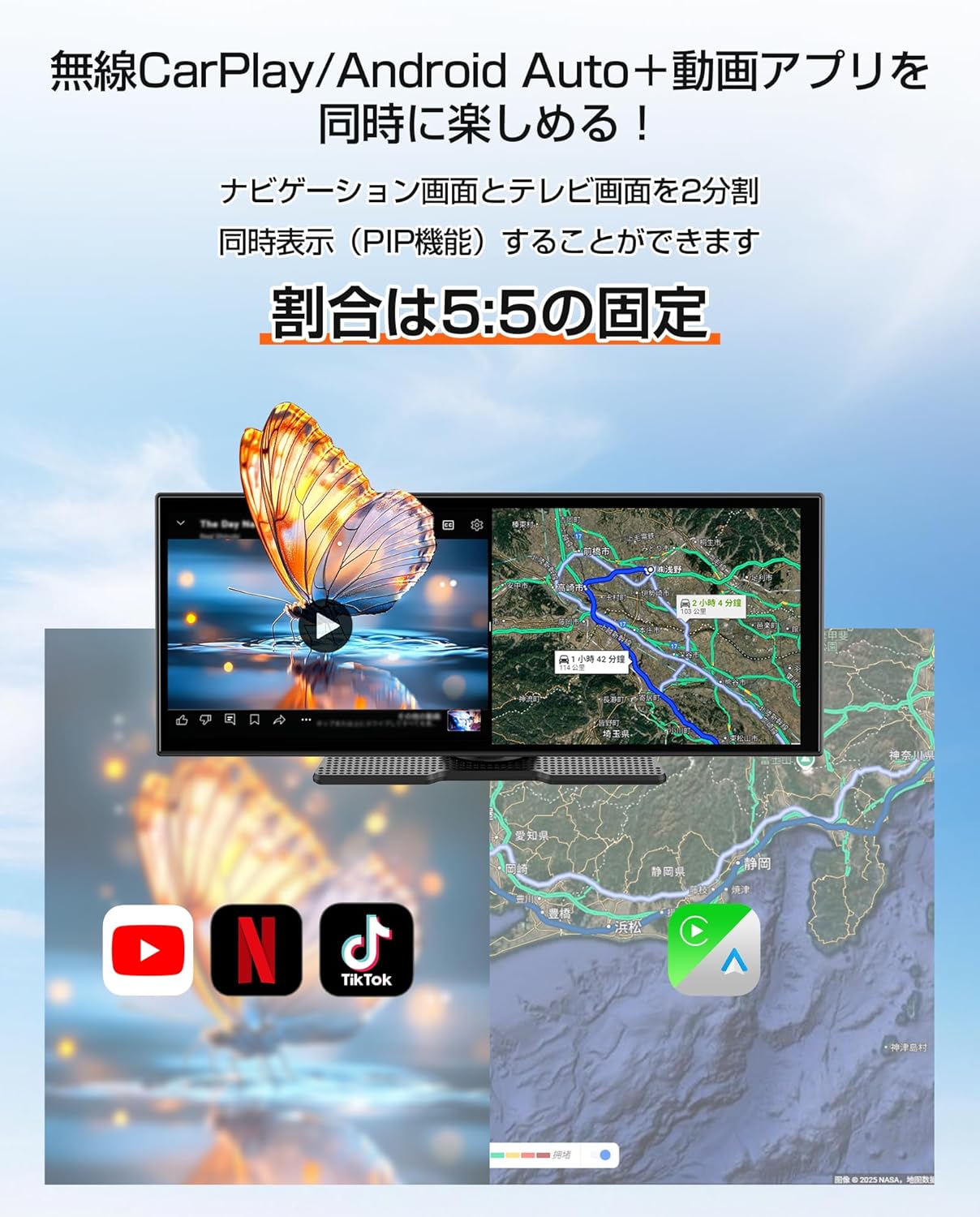
3.3 Split Screen Function (PIP)
The 11-inch display supports a 5:5 split-screen mode, allowing two applications to run side-by-side.
- সক্রিয়করণ: Refer to the on-screen interface for activating split-screen mode.
- ব্যবহার: প্রাক্তন জন্যample, display navigation on one half (via CarPlay/Android Auto) and a video streaming app (via the built-in Android system) on the other.

২.৭ অডিও আউটপুট বিকল্প
The unit offers multiple ways to output audio to your car's speakers.
- ডুয়াল ব্লুটুথ: The unit can receive audio from your smartphone via Bluetooth and transmit it to your car's audio system (if it supports Bluetooth audio input).
- AUX কেবল: Connect the provided AUX cable from the unit to your car's AUX input for a wired audio connection.
- বেতার সম্প্রচারযন্ত্র: The unit can transmit audio via an FM frequency, which you can tune into on your car's radio.
- অন্তর্নির্মিত স্পিকার: The unit has a small built-in speaker for basic audio output. For optimal sound quality, connecting to your car's audio system is recommended.

4. রক্ষণাবেক্ষণ
4.1 পরিষ্কার করা
To maintain the display's clarity and unit's appearance:
- নরম, লিন্ট-মুক্ত কাপড় দিয়ে আলতো করে পর্দাটি মুছুন। একগুঁয়ে দাগের জন্য, সামান্য ডিampপানি বা স্ক্রিন-সেফ ক্লিনার দিয়ে কাপড়টি ভিজিয়ে দিন।
- Avoid using abrasive cleaners, solvents, or aerosol sprays directly on the unit.
- বন্দরগুলিকে ধুলো এবং ধ্বংসাবশেষ মুক্ত রাখুন।
4.2 স্টোরেজ
দীর্ঘ সময় ধরে ব্যবহার না করলে:
- পাওয়ার উত্স থেকে ইউনিট সংযোগ বিচ্ছিন্ন করুন।
- ইউনিটটি সরাসরি সূর্যালোক এবং চরম তাপমাত্রা থেকে দূরে একটি শীতল, শুষ্ক জায়গায় সংরক্ষণ করুন।
5. সমস্যা সমাধান
If you encounter issues with your GetPairr Vista unit, refer to the following common solutions:
- ক্ষমতা নেই: Ensure the cigarette lighter adapter is securely plugged into both the unit and the vehicle's accessory socket. Check if the vehicle's accessory socket is receiving power.
- কোন শব্দ নেই: Verify the audio output method selected (Bluetooth, AUX, FM). Ensure your car's audio system is set to the correct input source. Adjust volume on both the unit and your car's audio system.
- কারপ্লে/অ্যান্ড্রয়েড অটো সংযুক্ত হচ্ছে না: Ensure Bluetooth is enabled on your smartphone and the unit. Try unpairing and re-pairing the devices. Check for any software updates for your smartphone or the unit.
- Slow Performance/App Freezing: Close unused applications. Ensure a stable Wi-Fi connection for online activities. Restart the unit if necessary.
- স্ক্রিন প্রতিক্রিয়াহীন: পাওয়ার বোতামটি ধরে রেখে (যদি পাওয়া যায়) অথবা পাওয়ার সংযোগ বিচ্ছিন্ন করে পুনরায় সংযোগ করে একটি নরম রিসেট করুন।
যদি সমস্যাগুলি থেকে যায়, তাহলে অনুগ্রহ করে গ্রাহক সহায়তার সাথে যোগাযোগ করুন।
6. স্পেসিফিকেশন
| বৈশিষ্ট্য | বিস্তারিত |
|---|---|
| পর্দার আকার | 11 ইঞ্চি |
| প্রদর্শনের ধরন | এলসিডি |
| রেজোলিউশন | 1920x720 |
| অপারেটিং সিস্টেম | Android, Wireless Apple CarPlay, Wireless Android Auto |
| সিপিইউ | 4-কোর |
| RAM | 2GB |
| রম | 32GB |
| সংযোগ | ব্লুটুথ, ইউএসবি, ওয়াই-ফাই |
| অডিও আউটপুট মোড | স্টেরিও |
| মাউন্ট টাইপ | এক্সএনইউএমএক্সএম টেপ |
| পণ্যের মাত্রা | 26 সেমি (L) x 2.7 সেমি (W) x 10.5 সেমি (H) |
| ওজন | 1 কেজি |
| পাওয়ার ইনপুট | DC 12V/24V (via cigarette lighter adapter) |
| অন্তর্ভুক্ত উপাদান | AUX Cable, Cigarette Plug Adapter, Portable Display Audio Main Unit, User Manual |
7. ওয়্যারেন্টি এবং সমর্থন
7.1 ওয়ারেন্টি তথ্য
The GetPairr Vista unit comes with a ১ বছরের প্রস্তুতকারকের ওয়ারেন্টি from the date of purchase. In the event of any defects or malfunctions, the manufacturer offers exchange or refund services.
7.2 গ্রাহক সহায়তা
For inquiries or support, please contact us via the official LINE account: @getpairr.