1. ভূমিকা
Thank you for choosing the NEC LCD4215 42-inch MultiSync LCD Monitor. This manual provides essential information for the safe and efficient use of your new display. Please read these instructions thoroughly before installation and operation, and retain them for future reference.
2. নিরাপত্তা তথ্য
মনিটরের ক্ষতি রোধ করতে এবং ব্যবহারকারীর নিরাপত্তা নিশ্চিত করতে নিম্নলিখিত নিরাপত্তা সতর্কতাগুলি অনুসরণ করুন:
- শক্তি উৎস: Connect the monitor only to a grounded power outlet with the correct voltage পণ্যের লেবেলে নির্দেশিত।
- বায়ুচলাচল: মনিটরের চারপাশে পর্যাপ্ত বায়ুচলাচল নিশ্চিত করুন। বায়ুচলাচল খোলা অংশ বন্ধ করবেন না।
- তরল এক্সপোজার: Avoid exposing the monitor to rain, moisture, or excessive humidity. Do not place liquid-filled objects on or near the monitor.
- পরিষ্কার করা: পরিষ্কার করার আগে পাওয়ার কর্ডটি সংযোগ বিচ্ছিন্ন করুন। একটি নরম, শুকনো কাপড় ব্যবহার করুন। তরল বা অ্যারোসল ক্লিনার এড়িয়ে চলুন।
- সার্ভিসিং: এই পণ্যটি নিজে পরিবেশন করার চেষ্টা করবেন না। যোগ্য পরিষেবা কর্মীদের কাছে সমস্ত পরিষেবা দেখুন।
- বসানো: মনিটরটি যাতে পড়ে না যায় তার জন্য একটি স্থিতিশীল, সমতল পৃষ্ঠে রাখুন।
3. প্যাকেজ বিষয়বস্তু
Verify that all items are present in the package. If any items are missing or damaged, contact your dealer immediately.
- NEC LCD4215 42-inch MultiSync LCD Monitor
- পাওয়ার কর্ড
- ভিজিএ কেবল
- ব্যাটারির সাথে রিমোট কন্ট্রোল
- ব্যবহারকারী ম্যানুয়াল (এই দস্তাবেজ)
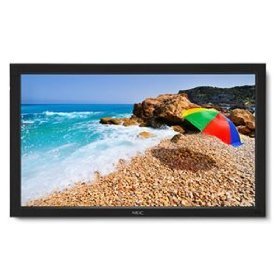
Image: The NEC LCD4215 42-inch MultiSync LCD Monitor, shown from the front with its stand. This image represents the primary display unit.
4. সেটআপ
4.1 আনপ্যাকিং
- Carefully open the packaging and remove the monitor and accessories.
- Place the monitor face down on a soft, clean surface to avoid scratching the screen.
4.2 Stand/Mounting Installation
The monitor can be used with its included desktop stand or mounted using a VESA-compatible wall mount (sold separately).
4.2.1 Desktop Stand Installation
- প্রদত্ত স্ক্রু ব্যবহার করে স্ট্যান্ডের ঘাড়ের সাথে স্ট্যান্ড বেস সংযুক্ত করুন।
- Secure the assembled stand to the back of the monitor using the designated mounting points and screws.
- Carefully lift the monitor and place it on a stable, level surface.
৪.৩ ওয়াল মাউন্টিং (ঐচ্ছিক)
If using a VESA-compatible wall mount, follow the instructions provided with your wall mount kit. Ensure the mount supports the weight and VESA pattern of the NEC LCD4215 monitor.
4.3 সংযোগকারী তারগুলি
Before connecting any cables, ensure the monitor and all connected devices are powered off.
- ভিডিও কেবল: Connect one end of the appropriate video cable (VGA, DVI, HDMI, etc.) to the video output port of your computer or media device and the other end to the corresponding input port on the monitor.
- Audio Cable (Optional): If using the monitor's internal speakers or audio output, connect an audio cable from your source device to the monitor's audio input.
- বৈদ্যুতিক তার: Connect the power cord to the monitor's AC input and then plug the other end into a grounded electrical outlet.
5. অপারেটিং নির্দেশাবলী
5.1 পাওয়ারিং অন/অফ
- Press the power button on the front panel of the monitor or on the remote control to turn the monitor on. The power indicator light will illuminate.
- মনিটর বন্ধ করতে, আবার পাওয়ার বোতাম টিপুন।
5.2 ইনপুট নির্বাচন
The monitor can display content from multiple sources. To switch between inputs:
- Press the 'Input' or 'Source' button on the remote control or the monitor's control panel.
- Use the navigation buttons to select the desired input source (e.g., VGA, DVI, HDMI).
- Press 'Enter' or 'OK' to confirm your selection.
৪.২ মৌলিক প্রদর্শন সেটিংস
Access the On-Screen Display (OSD) menu to adjust various settings:
- Press the 'Menu' button on the remote control or the monitor's control panel.
- Use the navigation buttons (Up/Down/Left/Right) to browse through menu options such as 'Brightness', 'Contrast', 'Color Temperature', and 'Aspect Ratio'.
- Press 'Enter' or 'OK' to select an option and adjust its value.
- Press 'Menu' again to exit the OSD menu.
6. রক্ষণাবেক্ষণ
6.1 ডিসপ্লে পরিষ্কার করা
To maintain optimal display quality, clean the screen and casing regularly:
- পরিষ্কার করার আগে সর্বদা বিদ্যুৎ বন্ধ করুন এবং মনিটরটি আনপ্লাগ করুন।
- একটি নরম, লিন্ট-মুক্ত কাপড় সামান্য ব্যবহার করুন dampened with water or a non-abrasive, ammonia-free, and alcohol-free screen cleaner.
- আলতো করে স্ক্রিনটি মুছুন এবং গasing. Do not apply excessive pressure.
- সরাসরি স্ক্রিনে বা কোনও খোলা জায়গায় তরল স্প্রে করা এড়িয়ে চলুন।
6.2 স্টোরেজ
If storing the monitor for an extended period, ensure it is powered off, unplugged, and stored in a cool, dry place away from direct sunlight and extreme temperatures. Use the original packaging if available for protection.
7. সমস্যা সমাধান
গ্রাহক সহায়তার সাথে যোগাযোগ করার আগে, সাধারণ সমস্যা এবং তাদের সমাধানের জন্য নিম্নলিখিত টেবিলটি দেখুন:
| সমস্যা | সম্ভাব্য কারণ | সমাধান |
|---|---|---|
| স্ক্রিনে কোনও চিত্র নেই | Monitor not powered on; Video cable loose or disconnected; Incorrect input source selected. | Press the power button; Check video cable connections; Select the correct input source. |
| ছবিটা খুব গাঢ়/উজ্জ্বল | উজ্জ্বলতা/বৈপরীত্য সেটিংস ভুল। | Adjust 'Brightness' and 'Contrast' in the OSD menu. |
| কোনো অডিও নেই | Audio cable disconnected; Volume too low; Muted. | Check audio cable connection; Increase volume; Unmute audio. |
| চকচকে ছবি | Video cable faulty; Resolution/Refresh rate mismatch. | Replace video cable; Adjust display settings on your computer. |
8. স্পেসিফিকেশন
Detailed technical specifications for the NEC LCD4215 MultiSync LCD Monitor:
| বৈশিষ্ট্য | স্পেসিফিকেশন |
|---|---|
| মডেল নম্বর | LCD4215 |
| পর্দার আকার | 42 ইঞ্চি |
| সর্বোচ্চ স্ক্রিন রেজোলিউশন | 1366 x 768 |
| আকৃতির অনুপাত | 1.78:1 |
| আইটেম ওজন | 47 পাউন্ড |
| পণ্যের মাত্রা (LxWxH) | 44 x 27.5 x 9.25 ইঞ্চি |
| রঙ | কালো |
| প্রস্তুতকারক | Nec Computers |
| তারিখ প্রথম উপলব্ধ | 31 জুলাই, 2008 |
9. ওয়্যারেন্টি এবং সমর্থন
9.1 ওয়ারেন্টি তথ্য
This NEC LCD4215 monitor comes with a standard manufacturer's warranty. Please refer to the separate warranty card included in your product packaging for specific terms, conditions, and duration of coverage. Keep your proof of purchase for warranty claims.
9.2 গ্রাহক সহায়তা
For technical assistance, troubleshooting beyond this manual, or warranty service, please contact NEC customer support. Visit the official NEC webফোন নম্বর এবং অনলাইন সহায়তা সংস্থান সহ সবচেয়ে হালনাগাদ যোগাযোগের তথ্যের জন্য সাইট।
Webসাইট: www.nec.com


