ভূমিকা
This manual provides essential instructions for setting up, operating, maintaining, and troubleshooting your Razer Hammerhead True Wireless Earbuds. Please read this guide thoroughly to ensure optimal performance and longevity of your device.

Image: The Razer Hammerhead True Wireless Earbuds shown with their charging case. The earbuds are white, and the case is also white with a green LED indicator.
সেটআপ
১. আনবক্সিং এবং প্যাকেজ সামগ্রী
Carefully unpack your Razer Hammerhead True Wireless Earbuds. Ensure all components are present:
- রেজার হ্যামারহেড ট্রু ওয়্যারলেস ইয়ারবাডস
- চার্জিং কেস
- USB-C চার্জিং তার
- Silicone Earbud Sleeves (various sizes)
- ব্যবহারকারী ম্যানুয়াল (এই দস্তাবেজ)

Image: The white charging case for the Razer Hammerhead True Wireless Earbuds, with a black USB-C charging cable and two grey silicone earbud sleeves.
৪.৩। প্রাথমিক চার্জিং
Before first use, fully charge the earbuds and the charging case. Place the earbuds into the charging case and connect the USB-C cable to the case and a power source. The LED indicator on the case will show charging status.

Image: A close-up of the Razer Hammerhead True Wireless Earbuds charging case with a USB-C cable plugged into its port, indicating the charging process.
3. ব্লুটুথ পেয়ারিং
- চার্জিং কেসটি খুলুন। ইয়ারবাডগুলি স্বয়ংক্রিয়ভাবে পেয়ারিং মোডে প্রবেশ করবে।
- আপনার ডিভাইসে (স্মার্টফোন, ট্যাবলেট, ইত্যাদি), ব্লুটুথ সক্ষম করুন এবং উপলব্ধ ডিভাইসগুলি অনুসন্ধান করুন।
- Select "Razer Hammerhead True Wireless" from the list of devices.
- Once paired, the earbuds will automatically connect to the last paired device when removed from the case.

Image: The Razer Hammerhead True Wireless Earbuds and charging case, accompanied by the Bluetooth 5.0 logo, highlighting their wireless connectivity feature.
4. Razer Audio App Installation
For advanced customization and control, download the Razer Audio app from your device's app store. The app allows you to adjust equalizer settings, customize touch controls, and update firmware.
অপারেটিং নির্দেশাবলী
1. স্পর্শ নিয়ন্ত্রণ
ইয়ারবাডগুলিতে বিভিন্ন ফাংশনের জন্য স্বজ্ঞাত স্পর্শ নিয়ন্ত্রণ রয়েছে:
- প্লে/পজ: যেকোনো ইয়ারবাডে একবার ট্যাপ করুন।
- পরবর্তী ট্র্যাক: ডান ইয়ারবাডে ডবল ট্যাপ করুন।
- পূর্ববর্তী ট্র্যাক: বাম ইয়ারবাডে ডবল ট্যাপ করুন।
- উত্তর / কল শেষ করুন: যেকোনো ইয়ারবাডে একবার ট্যাপ করুন।
- কল প্রত্যাখ্যান করুন: Tap and hold on either earbud.
- ভয়েস সহকারী সক্রিয় করুন: যেকোনো ইয়ারবাডে তিনবার ট্যাপ করুন।
- ভলিউম কন্ট্রোল: Customizable via the Razer Audio app.

ছবি: একটি ক্লোজ-আপ view of a single Razer Hammerhead True Wireless Earbud, highlighting its touch-enabled surface for convenient control.
2. Gaming Mode (Low Latency)
For an optimized gaming experience with minimal audio delay, activate Gaming Mode. This mode provides an ultra-low input latency of 60ms, ensuring audio is synchronized with your gameplay. This feature can typically be toggled via the Razer Audio app or specific touch gestures (refer to the app for details).
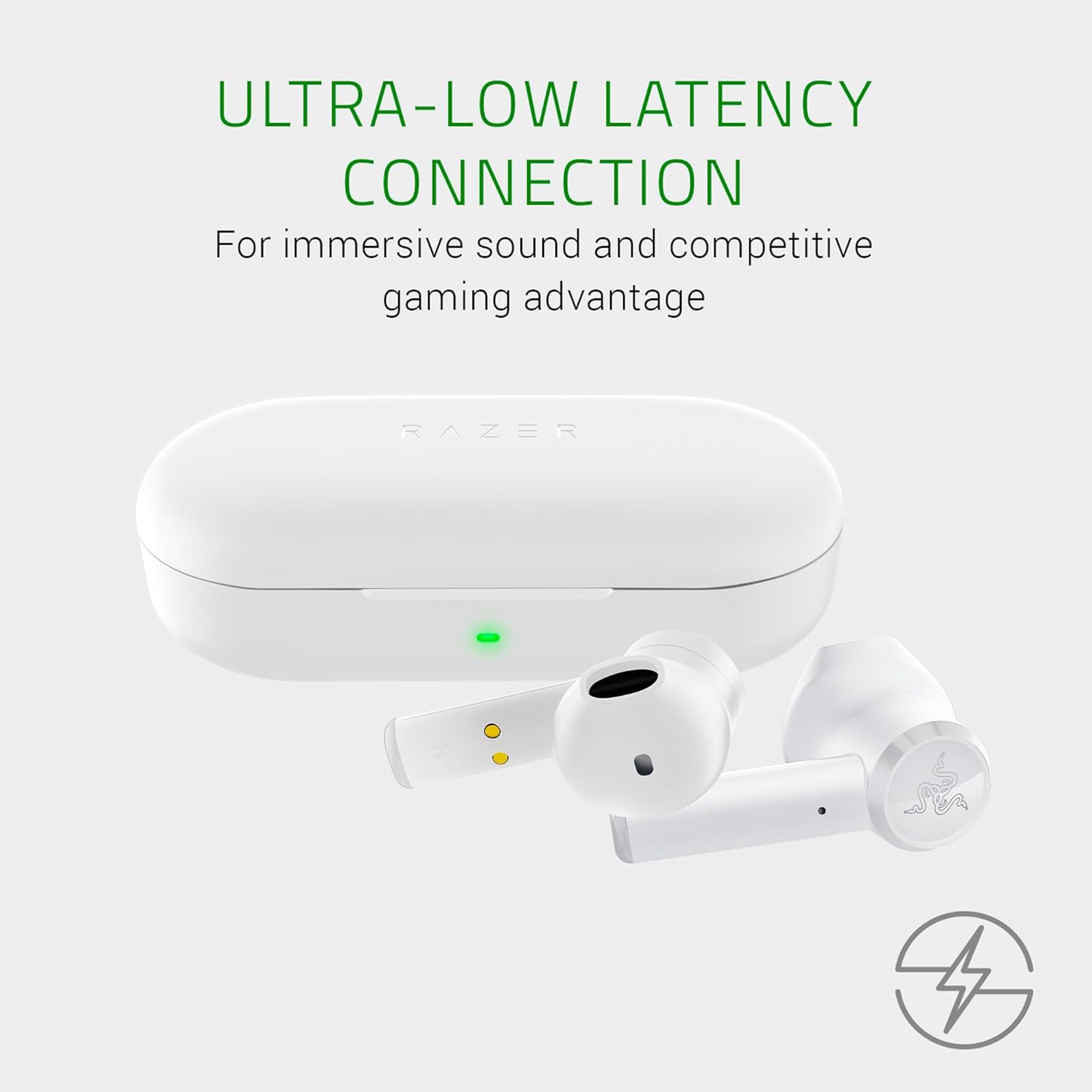
Image: The Razer Hammerhead True Wireless Earbuds and charging case, with text indicating "Ultra-Low Latency Connection" for immersive sound and competitive gaming.
৭. অডিও পারফরম্যান্স
The earbuds are equipped with custom-tuned 13mm dynamic drivers designed to deliver clear, balanced sound with deep bass, crisp highs, and rich mids. For personalized audio, use the Razer Audio app to adjust equalizer settings.

Image: An illustration showing three views of a Razer Hammerhead True Wireless Earbud with green sound waves emanating, emphasizing the custom-tuned 13mm drivers for clear, balanced sound.
4. Water-Resistant Design
The Razer Hammerhead True Wireless Earbuds feature a water-resistant design, allowing for use during various outdoor activities without concern for splashes or light rain. This design enhances durability for an active lifestyle.
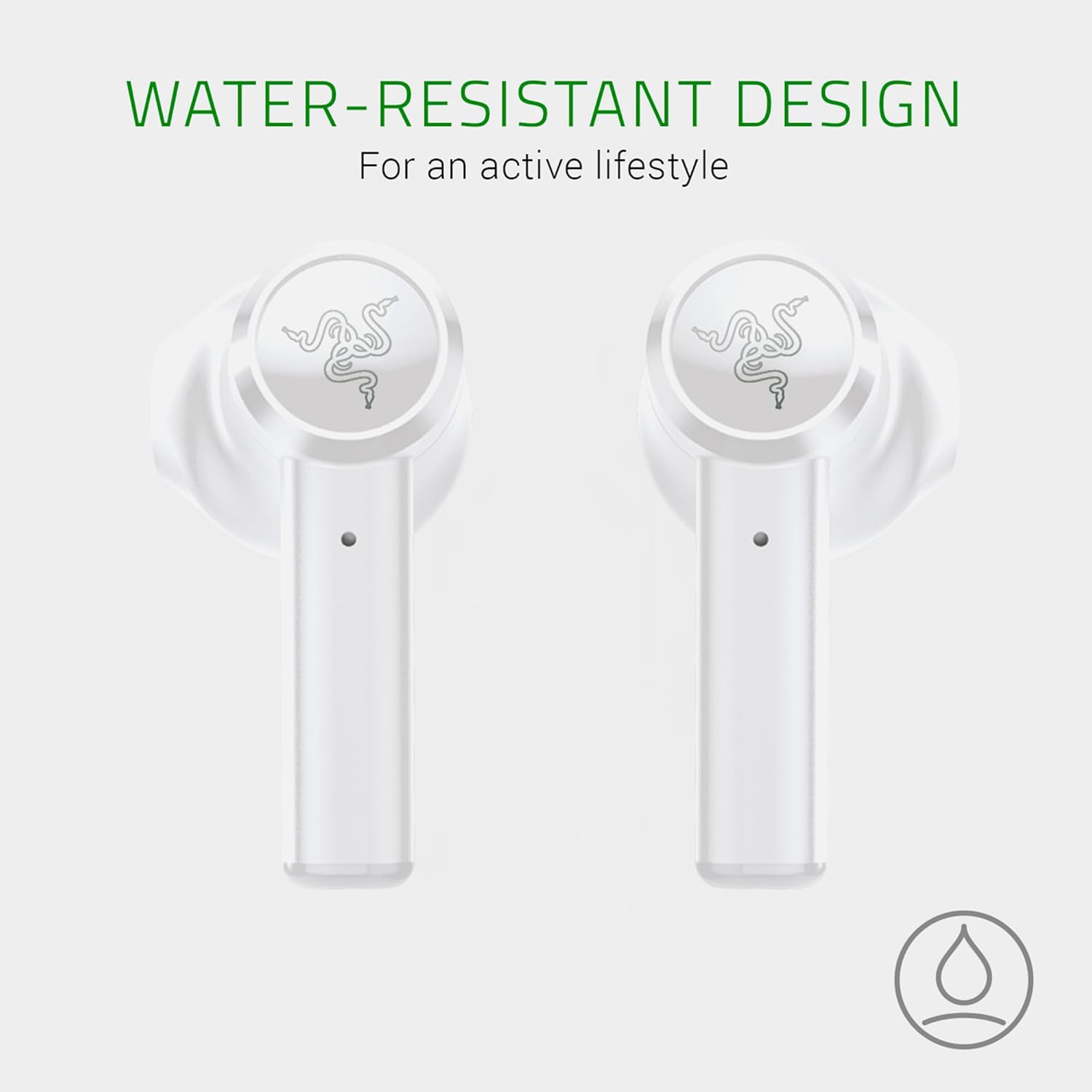
Image: Two Razer Hammerhead True Wireless Earbuds displayed side-by-side, with text indicating "Water-Resistant Design" for an active lifestyle.

Image: A close-up of a single Razer Hammerhead True Wireless Earbud with water droplets on its surface, illustrating its water-resistant capability.
রক্ষণাবেক্ষণ
1. পরিষ্কার করা
সর্বোত্তম কর্মক্ষমতা এবং স্বাস্থ্যবিধি বজায় রাখতে নিয়মিত আপনার ইয়ারবাড এবং চার্জিং কেস পরিষ্কার করুন:
- ইয়ারবাড এবং কেস মুছতে একটি নরম, শুকনো, লিন্ট-মুক্ত কাপড় ব্যবহার করুন।
- For earbud tips, gently remove them and clean with a mild soap solution if necessary, then rinse and dry completely before reattaching.
- ঘষিয়া তুলিয়া ফেলিতে সক্ষম উপকরণ বা কঠোর রাসায়নিক ব্যবহার এড়িয়ে চলুন.
2. চার্জিং
To ensure consistent power, charge your earbuds and case regularly. The charging case provides additional battery life, extending total usage time up to 15 hours. Always use the provided USB-C cable for charging.
The LED indicator on the charging case displays the battery status:
- সবুজ: Fully charged or high battery.
- অ্যাম্বার: Medium battery.
- লাল: ব্যাটারি কম, চার্জিং প্রয়োজন।
3. স্টোরেজ
যখন ব্যবহার করা হচ্ছে না, তখন ইয়ারবাডগুলিকে চার্জিং কেসে সংরক্ষণ করুন যাতে সেগুলি সুরক্ষিত থাকে এবং চার্জ থাকে। কেসটি সরাসরি সূর্যের আলো এবং চরম তাপমাত্রা থেকে দূরে একটি শীতল, শুষ্ক জায়গায় সংরক্ষণ করুন।
সমস্যা সমাধান
১. ইয়ারবাড জোড়া বা সংযুক্ত হচ্ছে না
- নিশ্চিত করুন যে উভয় ইয়ারবাড সম্পূর্ণ চার্জ করা আছে।
- Place both earbuds back into the charging case, close the lid, wait a few seconds, then open it again to re-initiate pairing mode.
- On your device, forget or remove the "Razer Hammerhead True Wireless" from your Bluetooth device list, then attempt to pair again.
- ডিভাইস-নির্দিষ্ট সমস্যাগুলি এড়াতে অন্য কোনও ডিভাইসের সাথে পেয়ার করার চেষ্টা করুন।
2. One Earbud Not Working or Charging
- Check the charging contacts on both the earbud and inside the case for any debris or obstruction. Clean gently if necessary.
- Ensure the earbud is seated correctly in the charging case.
- Fully charge the case and earbuds. If one earbud consistently shows low battery or fails to charge, it may indicate a hardware issue.
- Perform a factory reset (refer to the Razer Audio app or Razer support webনির্দিষ্ট নির্দেশাবলীর জন্য সাইট)।
3. Microphone Issues (e.g., with Discord)
Some users may experience microphone conflicts when using the earbuds with certain applications like Discord on PC. If you encounter issues where you cannot speak or be heard:
- On your PC, go to Sound Settings.
- Under "Input" (for microphone) and "Output" (for playback), disable any entries related to the "Razer Hammerhead True Wireless Hands-Free AG Audio" or similar hands-free profiles.
- Ensure only the "Razer Hammerhead True Wireless Stereo" is enabled for playback.
- You may need to use an alternative microphone for voice chat if the stereo profile does not support simultaneous high-quality audio and microphone input.
৮.৪. শব্দের মানের সমস্যা
- Ensure the earbud sleeves are correctly sized and provide a good seal in your ear canal.
- Adjust equalizer settings via the Razer Audio app.
- Check for firmware updates through the Razer Audio app.
স্পেসিফিকেশন
| বৈশিষ্ট্য | বিস্তারিত |
|---|---|
| মডেলের নাম | হামারহেড ট্রু ওয়্যারলেস |
| মডেল নম্বর | RZ12-02970500-R3M1 |
| সংযোগ প্রযুক্তি | ব্লুটুথ 5.0 |
| ড্রাইভারের আকার | 13 মিমি ডায়নামিক ড্রাইভার |
| জল প্রতিরোধের স্তর | Water-resistant (Étanche) |
| মাইক্রোফোন প্রযুক্তি | সর্বমুখী |
| কন্ট্রোল টাইপ | স্পর্শ, অ্যাপ নিয়ন্ত্রণ |
| ব্যাটারির ধরন | লিথিয়াম-পলিমার |
| মোট ব্যাটারি লাইফ (কেস সহ) | 15 ঘন্টা পর্যন্ত |
| ইয়ারবুদ ওজন | 12 গ্রাম |
| প্রতিবন্ধকতা | 32 ওহম |
| ফ্রিকোয়েন্সি রেসপন্স | ৩৮ হার্জ - ২০ কিলোহার্জ |
ওয়ারেন্টি তথ্য
The Razer Hammerhead True Wireless Earbuds come with a manufacturer's warranty of 24 মাস ক্রয়ের তারিখ থেকে। এই ওয়ারেন্টিটি সাধারণ ব্যবহারের সময় উপকরণ এবং কারিগরি ত্রুটিগুলিকে অন্তর্ভুক্ত করে। ওয়ারেন্টি দাবির জন্য দয়া করে আপনার ক্রয়ের প্রমাণপত্রটি সংরক্ষণ করুন।
For detailed warranty terms and conditions, please visit the official Razer support webসাইট
সমর্থন
If you encounter any issues not covered in this manual or require further assistance, please contact Razer Customer Support:
- অনলাইন সাপোর্ট: অফিসিয়াল পরিদর্শন করুন রেজার সাপোর্ট Webসাইট.
- Razer Audio App: The app may offer in-app support or troubleshooting guides.
Before contacting support, please have your product model number (RZ12-02970500-R3M1) and proof of purchase ready.


