1. ভূমিকা
Thank you for choosing the NEC E438 43-inch LCD 4K UHD Commercial-Grade Monitor. This manual provides detailed instructions for the safe and efficient use of your display. Please read this manual thoroughly before operating the product and retain it for future reference.
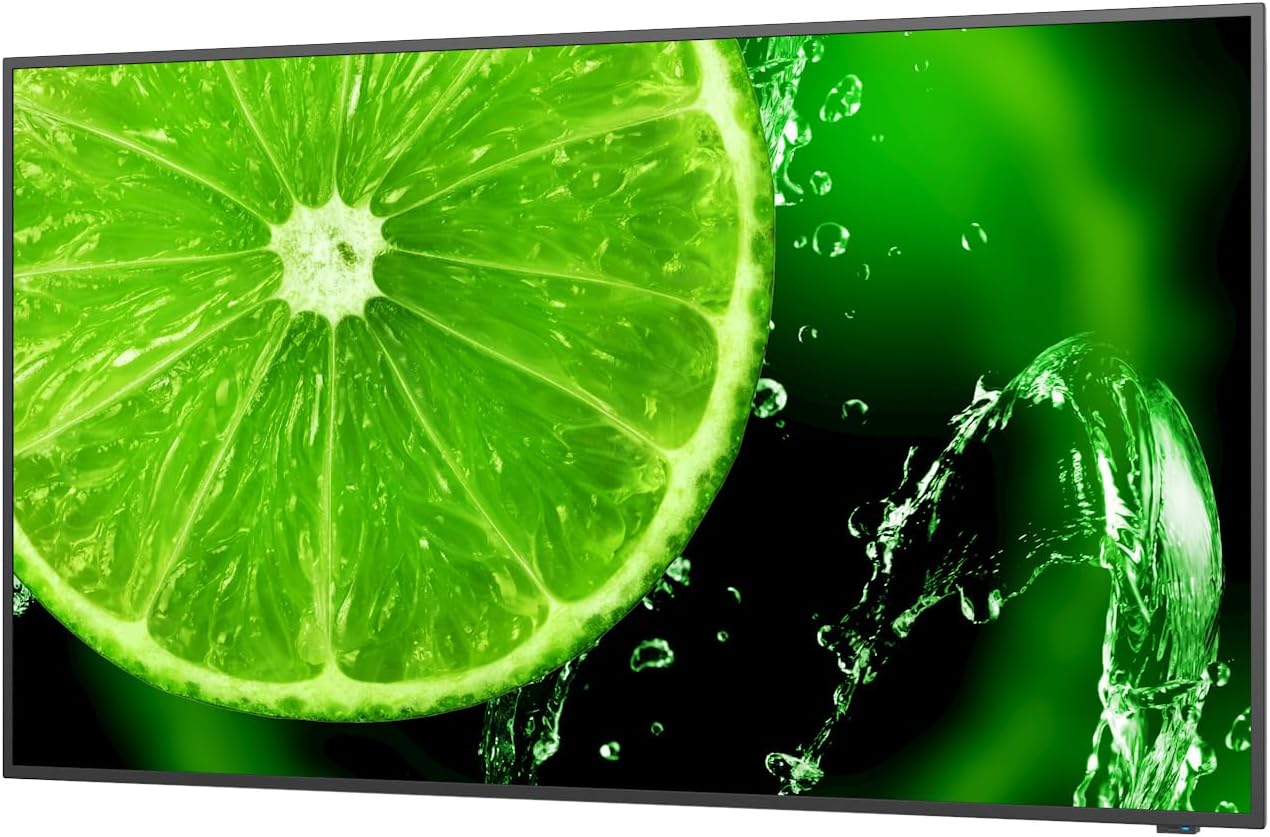
চিত্র 1: সামনে view of the NEC E438 43-inch 4K UHD monitor.
2. নিরাপত্তা তথ্য
পণ্যের ক্ষতি রোধ করতে এবং আপনার নিরাপত্তা নিশ্চিত করতে নিম্নলিখিত নিরাপত্তা সতর্কতাগুলি অনুসরণ করুন:
- আগুন বা বৈদ্যুতিক শক এড়াতে মনিটরকে বৃষ্টি বা আর্দ্রতার সংস্পর্শে আনবেন না।
- মনিটর খুলবেন না casinছ) সমস্ত পরিষেবা যোগ্য পরিষেবা কর্মীদের কাছে পাঠান।
- সঠিক বায়ুচলাচল নিশ্চিত করুন। বায়ুচলাচলের খোলা অংশ বন্ধ করবেন না।
- Use only the power cord supplied with the monitor or a suitable replacement.
- Place the monitor on a stable, level surface or mount it securely according to VESA standards.
- যদি মনিটরটি দীর্ঘ সময় ধরে ব্যবহার না করা হয় তবে ওয়াল আউটলেট থেকে পাওয়ার প্লাগটি সংযোগ বিচ্ছিন্ন করুন।
3. প্যাকেজ বিষয়বস্তু
প্যাকেজে সমস্ত আইটেম উপস্থিত আছে কিনা তা যাচাই করুন:
- NEC E438 43-inch LCD 4K UHD Monitor
- পাওয়ার কর্ড
- HDMI কেবল
- ইউএসবি-সি কেবল
- রিমোট কন্ট্রোল (ব্যাটারি সহ)
- ব্যবহারকারী ম্যানুয়াল (এই দস্তাবেজ)
- দ্রুত সেটআপ গাইড
4. সেটআপ
২.২ ভৌত স্থান নির্ধারণ
Place the monitor on a sturdy, flat surface or mount it using a VESA-compatible wall mount or stand. Ensure adequate space around the monitor for ventilation.
4.2 সংযোগকারী তারগুলি
Connect the necessary cables to the corresponding ports on the monitor and your source device (e.g., computer, media player).

চিত্র 2: পিছন view of the monitor showing connection ports and mounting points.

চিত্র 3: পার্শ্ব view of the monitor illustrating the input port cluster.
- শক্তি: Connect the power cord to the monitor's AC input and then to a grounded electrical outlet.
- ভিডিও ইনপুট: Use an HDMI, VGA, or USB-C cable to connect your source device to the monitor. The monitor supports multiple HDMI inputs.
- LAN এর: Connect an Ethernet cable to the LAN port for network connectivity.
- ইউএসবি-সি: For video, data, and power delivery (if supported by the source device).
5. অপারেটিং নির্দেশাবলী
5.1 পাওয়ার অন/অফ
Press the power button located on the monitor or on the remote control to turn the display on or off. The power indicator light will illuminate when the monitor is on.
5.2 ইনপুট নির্বাচন
Use the 'Input' button on the remote control or the monitor's control panel to cycle through available input sources (HDMI 1, HDMI 2, HDMI 3, VGA, USB-C, etc.).
৩.১ অন-স্ক্রিন ডিসপ্লে (ওএসডি) মেনু
Access the OSD menu to adjust various display settings such as brightness, contrast, color temperature, aspect ratio, and audio settings. Navigate the menu using the directional buttons on the remote or monitor and confirm selections with the 'Enter' button.
5.4 অডিও
The monitor includes integrated speakers. Adjust the volume using the remote control or through the OSD menu. You can also connect external audio devices if desired.
6. রক্ষণাবেক্ষণ
6.1 মনিটর পরিষ্কার করা
- পরিষ্কার করার আগে সর্বদা মনিটরটি আনপ্লাগ করুন।
- একটি নরম, লিন্ট-মুক্ত কাপড় সামান্য ব্যবহার করুন dampজল অথবা হালকা, ঘর্ষণহীন স্ক্রিন ক্লিনার দিয়ে ভিজিয়ে নিন।
- সরাসরি স্ক্রিনে ক্লিনার স্প্রে করবেন না।
- কঠোর রাসায়নিক, দ্রাবক, বা ঘষিয়া তুলিয়া ফেলিতে সক্ষম পদার্থ ব্যবহার করা এড়িয়ে চলুন।
.6.2.১ সাধারণ যত্ন
- মনিটরটিকে সরাসরি সূর্যালোক এবং তাপের উৎস থেকে দূরে রাখুন।
- অতিরিক্ত গরম রোধ করতে সঠিক বায়ুচলাচল নিশ্চিত করুন।
- মনিটর বা তারের উপর ভারী জিনিস রাখা এড়িয়ে চলুন।
7. সমস্যা সমাধান
আপনার মনিটরে যদি কোনও সমস্যা দেখা দেয়, তাহলে নিম্নলিখিত সাধারণ সমস্যা সমাধানের ধাপগুলি দেখুন:
| সমস্যা | সম্ভাব্য সমাধান |
|---|---|
| ক্ষমতা নেই | Check if the power cord is securely connected to both the monitor and the power outlet. Ensure the power outlet is functional. |
| কোন সংকেত নেই | Verify that the video cable (HDMI, VGA, USB-C) is correctly connected to both the monitor and the source device. Select the correct input source using the 'Input' button. |
| ছবিটি বিকৃত বা অস্পষ্ট | Adjust resolution and refresh rate settings on your source device. Check cable connections for looseness or damage. Perform an auto-adjustment via the OSD menu if using VGA. |
| স্পিকারের শব্দ নেই | Check the volume settings on the monitor and your source device. Ensure the audio output is correctly configured on your source device. |
If the problem persists after trying these steps, please contact NEC customer support.
8. স্পেসিফিকেশন
Key technical specifications for the NEC E438 monitor:
- পর্দার আকার: 43 ইঞ্চি
- রেজোলিউশন: 3840 x 2160 (4K UHD)
- আকৃতির অনুপাত: 16:9
- প্যানেলের প্রকার: আইপিএস (ইন-প্লেন সুইচিং)
- ছবির উজ্জ্বলতা: 350 cd/m² (NITS)
- ভিডিও ইনপুট: HDMI (multiple), VGA, USB-C
- অন্যান্য বন্দর: LAN, Total 2 USB Ports
- বক্তা: সমন্বিত
- পণ্যের মাত্রা: 2.8 x 38.2 x 22.04 ইঞ্চি
- আইটেম ওজন: 19.58 পাউন্ড
- ভলিউমtage: 240 ভোল্ট
- মডেল নম্বর: 60005045

Figure 4: Excerpt from the product data sheet.
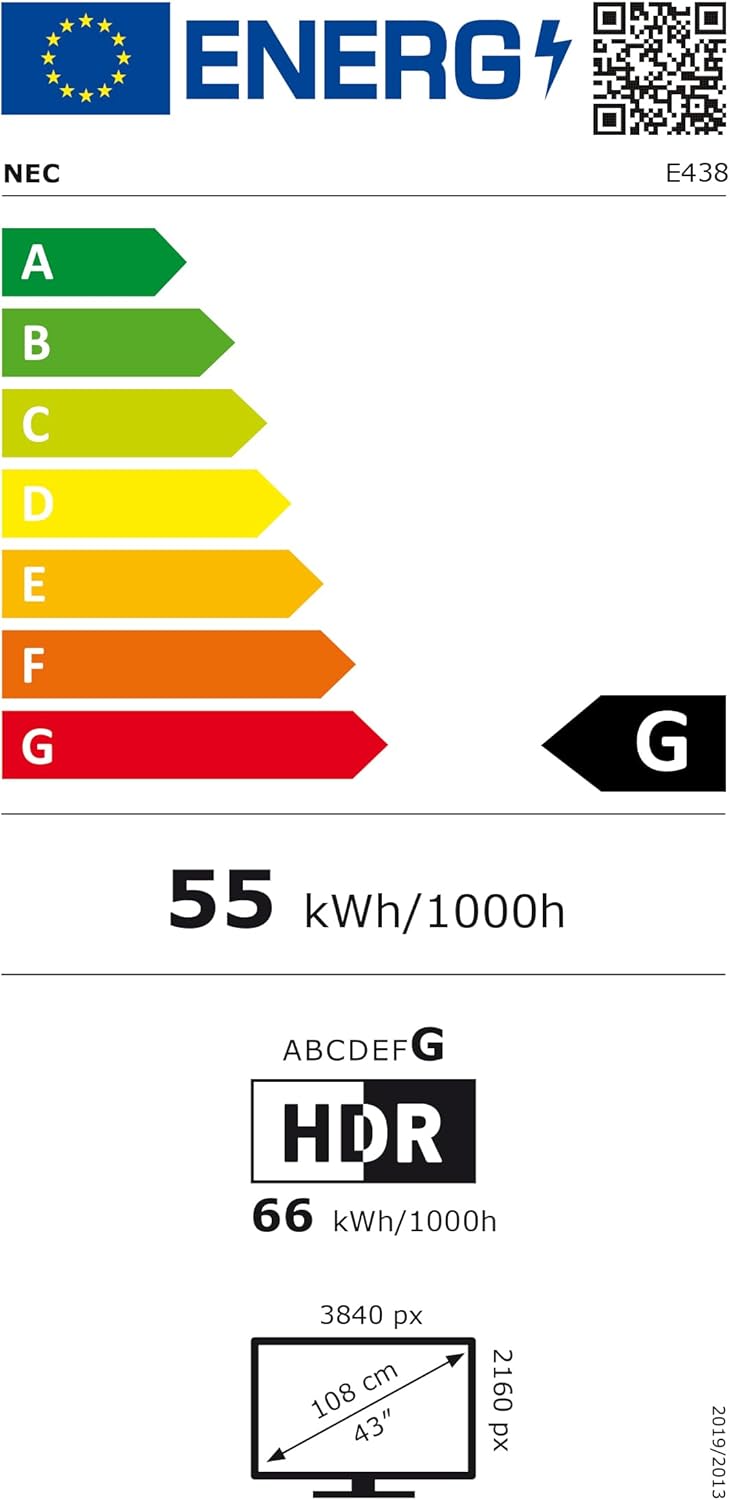
Figure 5: EU Energy Label for the NEC E438 monitor.
For more detailed energy information, please visit the EPREL database: https://eprel.ec.europa.eu/qr/429363
9. ওয়্যারেন্টি এবং সমর্থন
9.1 ওয়ারেন্টি তথ্য
This NEC E438 monitor comes with a 3-year limited warranty. Please refer to the warranty card included in your package for specific terms and conditions. Keep your proof of purchase for warranty claims.
9.2 গ্রাহক সহায়তা
For technical assistance, service, or further inquiries, please contact NEC customer support. Visit the official NEC webযোগাযোগের বিবরণ এবং সহায়তা সংস্থানগুলির জন্য সাইট।