পণ্য ওভারview
The TECKNET Wireless Mouse (Model M003) offers versatile connectivity and ergonomic design for enhanced productivity. It supports both 2.4G wireless via a USB-A receiver and Bluetooth 5.0/3.0, allowing seamless switching between two devices. Featuring silent clicks and adjustable DPI settings, this mouse is designed for comfort and precision across various operating systems.
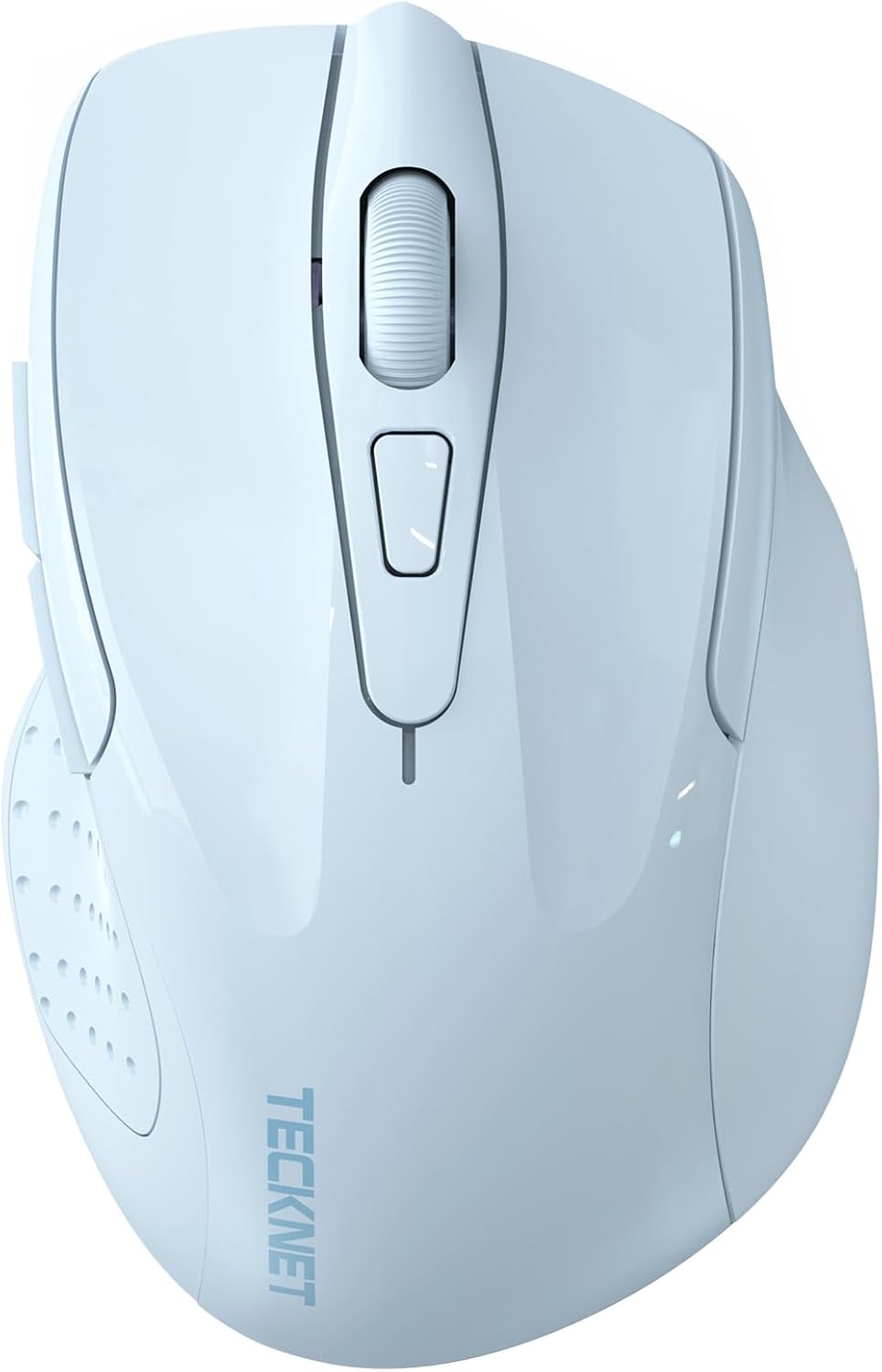
ছবি: উপরে থেকে নিচে view of the TECKNET Wireless Mouse, highlighting its sleek design.
মূল বৈশিষ্ট্য
- দ্বৈত ডিভাইস সংযোগ: Seamlessly switch between 2.4G wireless (USB-A receiver) and Bluetooth (5.0/3.0) for connection to two devices.
- সামঞ্জস্যযোগ্য ডিপিআই: Six sensitivity levels (800/1200/1600/2400/3200/4800 DPI) for precise control.
- নীরব অপারেশন: Whisper-quiet clicks for a distraction-free environment.
- ব্যাপক সামঞ্জস্যতা: Supports Windows, macOS, Chrome OS, and Linux. (Note: Side buttons are not compatible with macOS).
- এরগনোমিক ডিজাইন: Contoured shape fits the natural curvature of the hand for comfortable use.
- বুদ্ধিমান শক্তি সঞ্চয়: Automatic sleep mode extends battery life up to 30 months.
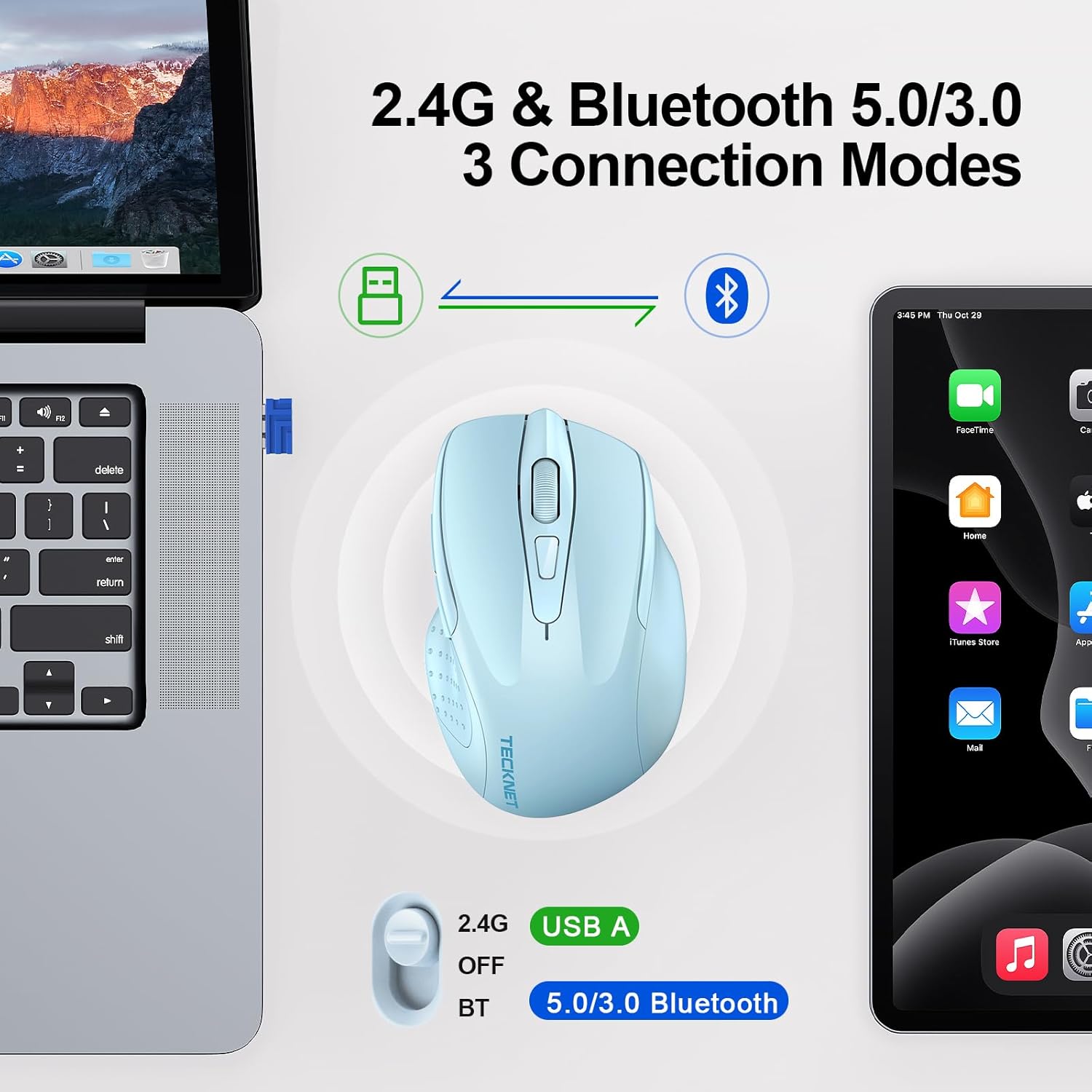
Image: Diagram illustrating the dual 2.4G and Bluetooth connection modes of the mouse with a laptop and tablet.
সেটআপ নির্দেশাবলী
1. ব্যাটারি ইনস্টলেশন
- মাউসের নীচের দিকে ব্যাটারি বগিটি সনাক্ত করুন।
- ব্যাটারি কম্পার্টমেন্ট কভার খুলুন.
- সঠিক পোলারিটি (+/-) নিশ্চিত করে দুটি AAA ব্যাটারি (অন্তর্ভুক্ত নয়) ঢোকান।
- ব্যাটারি কম্পার্টমেন্ট কভার বন্ধ করুন.

Image: The underside of the mouse with the battery compartment open, showing where to insert two AAA batteries.
2. Connecting via 2.4G Wireless (USB-A Receiver)
- Locate the USB-A receiver, typically stored in the battery compartment of the mouse.
- আপনার কম্পিউটারে একটি উপলব্ধ USB পোর্টে USB-A রিসিভারটি প্লাগ করুন।
- Slide the power switch on the bottom of the mouse to the '2.4G' position.
- The mouse should automatically connect to your computer. The green LED indicator will light up briefly.
3. Connecting via Bluetooth (BT5.0/3.0)
- Slide the power switch on the bottom of the mouse to the 'BT' position.
- Press and hold the Bluetooth pairing button (usually located near the power switch) for 3-5 seconds until the blue LED indicator starts flashing.
- On your computer or device, navigate to Bluetooth settings.
- জন্য অনুসন্ধান করুন new devices and select 'TECKNET Mouse' (or similar) from the list.
- Follow any on-screen prompts to complete the pairing process. The blue LED indicator will stop flashing and remain solid once connected.

Image: Detailed diagram showing the location of the scroll wheel, left/right buttons, forward/backward buttons, DPI switch, Bluetooth pairing button, USB receiver storage, and battery compartment.
অপারেটিং নির্দেশাবলী
1. ডিপিআই সমন্বয়
Press the DPI switch button, located behind the scroll wheel, to cycle through the six available DPI settings (800/1200/1600/2400/3200/4800). This allows you to adjust the cursor sensitivity to your preference.

Image: Visual representation of the 6 adjustable DPI levels (800 to 4800) and the mouse for precise control.
৫.৩. ডিভাইসগুলির মধ্যে স্যুইচিং
To switch between 2.4G wireless and Bluetooth connections, simply slide the power switch on the bottom of the mouse to the desired mode (2.4G or BT).
৩.২. সাইড বোতাম
The mouse features forward and backward side buttons for convenient navigation in web browsers and other applications. Please note that these side buttons are not compatible with macOS.
4. Automatic Sleep Mode
The mouse is equipped with an intelligent energy-saving feature. If left inactive for a period, it will enter an automatic sleep mode to conserve battery life. To reactivate the mouse, simply move it or click any button.

Image: Illustration of the mouse's working, stand-by, auto-sleep, and activation states.
রক্ষণাবেক্ষণ
1. ব্যাটারি প্রতিস্থাপন
When the red LED indicator flashes, it signifies low battery. Replace the two AAA batteries as described in the 'Battery Installation' section.

Image: Explanation of the LED indicator colors: Red for DPI/Low Battery, Blue for Bluetooth, Green for 2.4G.
2. পরিষ্কার করা
To clean the mouse, use a soft, dry cloth. Avoid using harsh chemicals or abrasive materials, which may damage the surface.
সমস্যা সমাধান
- মাউস সাড়া দিচ্ছে না: Ensure batteries are correctly installed and charged. Check that the power switch is in the correct position (2.4G or BT). For 2.4G, ensure the USB receiver is securely plugged in. For Bluetooth, verify the mouse is paired correctly in your device's Bluetooth settings.
- অনিয়মিত কার্সার চলাচল: Try adjusting the DPI setting. Ensure the mouse is used on a clean, non-reflective surface.
- যোগাযোগ সমস্যা: If using 2.4G, try plugging the USB receiver into a different USB port. If using Bluetooth, try unpairing and re-pairing the mouse with your device.
স্পেসিফিকেশন
| মডেল | M003 |
| সংযোগ প্রযুক্তি | Bluetooth (5.0/3.0), 2.4G Wireless (USB A) |
| ডিপিআই সেটিংস | 800, 1200, 1600, 2400, 3200, 4800 |
| বোতাম | ৬ (বাম, ডান, স্ক্রোল হুইল, ডিপিআই সুইচ, ফরোয়ার্ড, ব্যাকওয়ার্ড) |
| আন্দোলন সনাক্তকরণ | অপটিক্যাল |
| শক্তির উৎস | 2 x AAA ব্যাটারি (অন্তর্ভুক্ত নয়) |
| আইটেম ওজন | 3.2 আউন্স |
| প্যাকেজের মাত্রা | 4.45 x 3.19 x 1.85 ইঞ্চি |
| সামঞ্জস্য | Windows, macOS, Chrome OS, Linux |
ওয়্যারেন্টি এবং সমর্থন
TECKNET offers 36 Months Support for this product. If you encounter any problems during use, please contact our professional customer service team for assistance. Please register your product to ensure full warranty benefits.
For further information or support, visit the official TECKNET Store.


