1. ভূমিকা
This manual provides essential information for the safe and efficient use of your Fujitsu FMVF75K1BA FMV Desktop F 23.8-inch PC. Please read this manual thoroughly before operating the device and retain it for future reference. This desktop PC is designed for general computing tasks, featuring a 23.8-inch Full HD display, an Intel Core i7 processor, 16GB of RAM, and a 512GB storage drive, running Windows 11 Home.
2. নিরাপত্তা তথ্য
পণ্যের ক্ষতি রোধ করতে এবং ব্যবহারকারীর নিরাপত্তা নিশ্চিত করতে নিম্নলিখিত নিরাপত্তা সতর্কতাগুলি পালন করুন:
- পাওয়ার সাপ্লাই: শুধুমাত্র ডিভাইসের সাথে সরবরাহ করা পাওয়ার অ্যাডাপ্টার ব্যবহার করুন। নিশ্চিত করুন যে পাওয়ার আউটলেটটি সঠিকভাবে গ্রাউন্ডেড আছে।
- বায়ুচলাচল: Do not block ventilation openings. Maintain adequate space around the PC for proper airflow to prevent overheating.
- পরিবেশ: Avoid exposing the PC to extreme temperatures, humidity, dust, or direct sunlight. Operate in a stable, dry environment.
- তরল এবং বিদেশী বস্তু: Keep liquids and foreign objects away from the PC. If liquid enters the device, immediately disconnect power and contact support.
- সার্ভিসিং: Do not attempt to service the PC yourself. Refer all servicing to qualified service personnel.
- পরিষ্কার করা: পরিষ্কার করার আগে পাওয়ার কর্ডটি সংযোগ বিচ্ছিন্ন করুন। একটি নরম, শুকনো কাপড় ব্যবহার করুন। তরল বা অ্যারোসল ক্লিনার ব্যবহার করবেন না।
3. প্যাকেজ বিষয়বস্তু
প্যাকেজে সমস্ত আইটেম উপস্থিত আছে কিনা তা যাচাই করুন:
- Fujitsu FMVF75K1BA FMV Desktop F 23.8-inch PC
- পাওয়ার অ্যাডাপ্টার এবং পাওয়ার কর্ড
- কীবোর্ড
- মাউস
- দ্রুত শুরু নির্দেশিকা (যদি অন্তর্ভুক্ত থাকে)
- ওয়ারেন্টি কার্ড (যদি অন্তর্ভুক্ত থাকে)
4. পণ্য শেষview
The Fujitsu FMVF75K1BA is an all-in-one desktop PC featuring a 23.8-inch display. Key components include the integrated display, CPU, memory, storage, and various input/output ports.
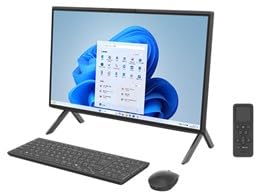
চিত্র 4.1: সামনে view of the Fujitsu FMVF75K1BA FMV Desktop F PC. This image shows the integrated display and the sleek design of the all-in-one unit.
২.১ ফ্রন্ট প্যানেল
- প্রদর্শন: ১৫.৬-ইঞ্চি ফুল এইচডি (১৯২০x১০৮০) স্ক্রিন।
- পাওয়ার বোতাম: Located typically on the bottom right or side of the display bezel.
- Webক্যাম: Integrated at the top center of the display.
4.2 Rear/Side Panels
- ইউএসবি পোর্ট: For connecting peripherals like keyboard, mouse, external drives.
- এইচডিএমআই পোর্ট: For connecting an external monitor or TV.
- ল্যান পোর্ট: তারযুক্ত নেটওয়ার্ক সংযোগের জন্য।
- অডিও জ্যাক: For headphones, microphone, or external speakers.
- পাওয়ার ইনপুট: পাওয়ার অ্যাডাপ্টার সংযোগের জন্য।
5. সেটআপ
প্রাথমিক সেটআপের জন্য এই পদক্ষেপগুলি অনুসরণ করুন:
- আনপ্যাক করুন: প্যাকেজিং থেকে পিসি এবং সমস্ত আনুষাঙ্গিক জিনিসপত্র সাবধানে সরিয়ে ফেলুন।
- অবস্থান: Place the PC on a stable, flat surface with adequate ventilation space around it.
- কীবোর্ড এবং মাউস সংযুক্ত করুন: Plug the USB keyboard and mouse into the available USB ports on the PC.
- বিদ্যুৎ সংযোগ করুন: Connect the power adapter to the power input port on the PC, then plug the power cord into a grounded electrical outlet.
- পাওয়ার চালু: পিসি চালু করতে পাওয়ার বোতাম টিপুন।
- প্রাথমিক উইন্ডোজ সেটআপ: ভাষা, অঞ্চল, নেটওয়ার্ক সংযোগ এবং ব্যবহারকারী অ্যাকাউন্ট তৈরি সহ Windows 11 হোম প্রাথমিক সেটআপ সম্পূর্ণ করতে অন-স্ক্রীন নির্দেশাবলী অনুসরণ করুন।
6. অপারেটিং নির্দেশাবলী
6.1 চালু/বন্ধ করা
- চালু করতে: পাওয়ার বোতাম টিপুন।
- বন্ধ করতে: স্টার্ট বোতামে ক্লিক করুন, তারপর পাওয়ার বোতামে ক্লিক করুন এবং "শাট ডাউন" নির্বাচন করুন।
- নতুন করে শুরু: স্টার্ট বোতামে ক্লিক করুন, তারপর পাওয়ার বোতামে ক্লিক করুন এবং "রিস্টার্ট" নির্বাচন করুন।
- ঘুমাতে: স্টার্ট বোতামে ক্লিক করুন, তারপর পাওয়ার বোতামে ক্লিক করুন এবং "স্লিপ" নির্বাচন করুন।
6.2 একটি নেটওয়ার্কের সাথে সংযোগ করা
- তারযুক্ত সংযোগ: Connect an Ethernet cable from your router/modem to the LAN port on the PC.
- ওয়্যারলেস সংযোগ (ওয়াই-ফাই):
- টাস্কবারে Wi-Fi আইকনে ক্লিক করুন।
- তালিকা থেকে আপনার পছন্দসই Wi-Fi নেটওয়ার্ক নির্বাচন করুন।
- অনুরোধ করা হলে নেটওয়ার্ক নিরাপত্তা কী (পাসওয়ার্ড) লিখুন।
- Click "Connect". The PC supports IEEE802.11ax (Wi-Fi 6E) for high-speed wireless connectivity.
6.3 Using Microsoft Office + 365
Your PC comes with Microsoft Office + 365. Follow the on-screen instructions upon first launch of any Office application (e.g., Word, Excel) to activate your subscription. An internet connection and a Microsoft account are typically required for activation.
7. রক্ষণাবেক্ষণ
7.1 পরিষ্কার করা
- পর্দা: ইলেকট্রনিক্সের জন্য বিশেষভাবে তৈরি নরম, লিন্ট-মুক্ত কাপড় ব্যবহার করুন। একগুঁয়ে দাগের জন্য, হালকাভাবে ঘষুনampen the cloth with water or a screen cleaner. Do not spray cleaner directly onto the screen.
- চেসিস: Wipe the exterior surfaces with a soft, dry cloth. Avoid abrasive materials or harsh chemicals.
- বায়ুচলাচল: Periodically check and gently clean the ventilation openings to prevent dust buildup, which can impede airflow.
7.2 সফ্টওয়্যার আপডেট
সর্বোত্তম কর্মক্ষমতা এবং সুরক্ষা নিশ্চিত করতে নিয়মিতভাবে আপনার উইন্ডোজ অপারেটিং সিস্টেম এবং ড্রাইভার আপডেট করুন। উইন্ডোজ আপডেট সাধারণত এটি স্বয়ংক্রিয়ভাবে পরিচালনা করে, তবে আপনি ম্যানুয়ালি চেক করতে পারেন এখানে গিয়ে সেটিংস > উইন্ডোজ আপডেট.
7.3 ডেটা ব্যাকআপ
ডেটা ক্ষতি রোধ করার জন্য আপনার গুরুত্বপূর্ণ ডেটা নিয়মিতভাবে একটি বহিরাগত ড্রাইভ বা ক্লাউড স্টোরেজে ব্যাকআপ করার পরামর্শ দেওয়া হচ্ছে।
8. সমস্যা সমাধান
| সমস্যা | সম্ভাব্য কারণ | সমাধান |
|---|---|---|
| পিসি চালু হচ্ছে না। | Power cable loose, power outlet issue, power adapter fault. | সমস্ত পাওয়ার সংযোগ পরীক্ষা করুন। একটি ভিন্ন পাওয়ার আউটলেট চেষ্টা করুন। পাওয়ার অ্যাডাপ্টারটি কাজ করছে কিনা তা নিশ্চিত করুন। |
| স্ক্রিনে কোনও ডিসপ্লে নেই। | PC is off, display brightness too low, external monitor not connected (if applicable). | Ensure PC is on. Adjust display brightness. If using an external monitor, check its power and cable connection. |
| Wi-Fi এর সাথে সংযোগ করা যাচ্ছে না। | Incorrect password, Wi-Fi adapter off, router issue, out of range. | Verify Wi-Fi password. Check if Wi-Fi is enabled in Windows settings. Restart your router. Move closer to the router. |
| PC is running slow. | Too many programs open, low disk space, malware, outdated drivers. | অপ্রয়োজনীয় অ্যাপ্লিকেশন বন্ধ করুন। ডিস্কের জায়গা খালি করুন। ভাইরাস স্ক্যান করুন। উইন্ডোজ এবং ড্রাইভার আপডেট করুন। |
9. স্পেসিফিকেশন
| মডেলের নাম | FMVF75K1BA |
| ব্র্যান্ড | ফুজিৎসু |
| প্রদর্শন | ৯.৭-ইঞ্চি, ১০২৪x৭৬৮ রেজোলিউশন |
| প্রসেসর | ইন্টেল কোর i7 |
| RAM | 16GB |
| স্টোরেজ | 512GB |
| অপারেটিং সিস্টেম | উইন্ডোজ 11 হোম |
| ওয়্যারলেস ল্যান | IEEE802.11ax (Wi-Fi 6E compatible)/ac/a/b/g/n |
| বন্দর | USB, HDMI, LAN, Audio Jacks (specific number and type may vary) |
10. ওয়্যারেন্টি এবং সমর্থন
Your Fujitsu FMVF75K1BA PC is covered by a manufacturer's warranty. Please refer to the warranty card included in your package for specific terms and conditions, including the warranty period and coverage details.
For technical support, service, or warranty claims, please contact Fujitsu customer support through their official website or the contact information provided in your warranty documentation. Have your model number (FMVF75K1BA) and serial number ready when contacting support.
অনলাইন সাপোর্ট: Visit the official Fujitsu support website for drivers, FAQs, and further assistance.


